
Working with Individual Questions
Overview
The View Bid Question page provides detailed analysis and management tools for individual bid questions. This guide explains how to view, analyse, and work with specific bid questions in depth.
Prerequisites
- A Bid Bot account
- Access to a bid with bid questions
- Navigation to a specific bid question
Accessing View Bid Question
From the Bid page
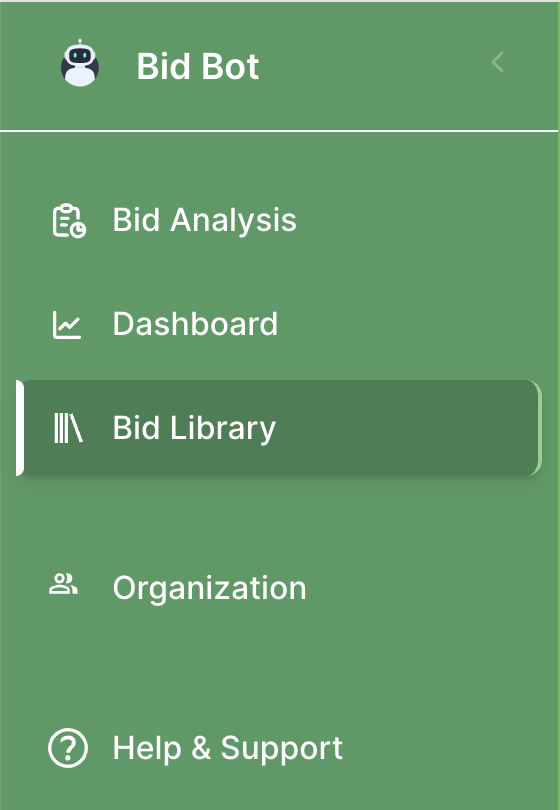
- Go to Bid Library
- Open a bid from your library
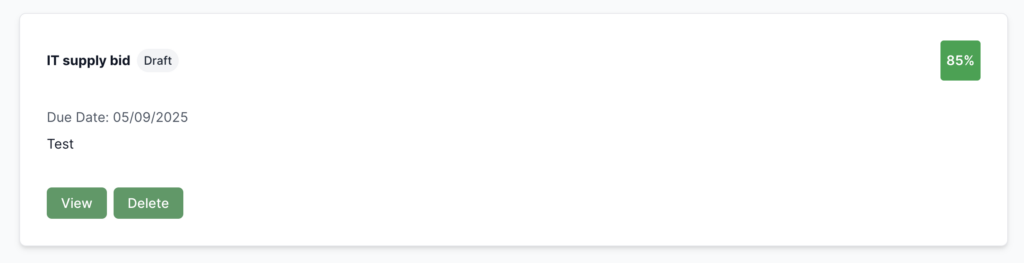
- Click on any question in the bid questions list

- You’ll be taken to the View Bid Question page
Understanding the View Bid Question Interface
Question Information
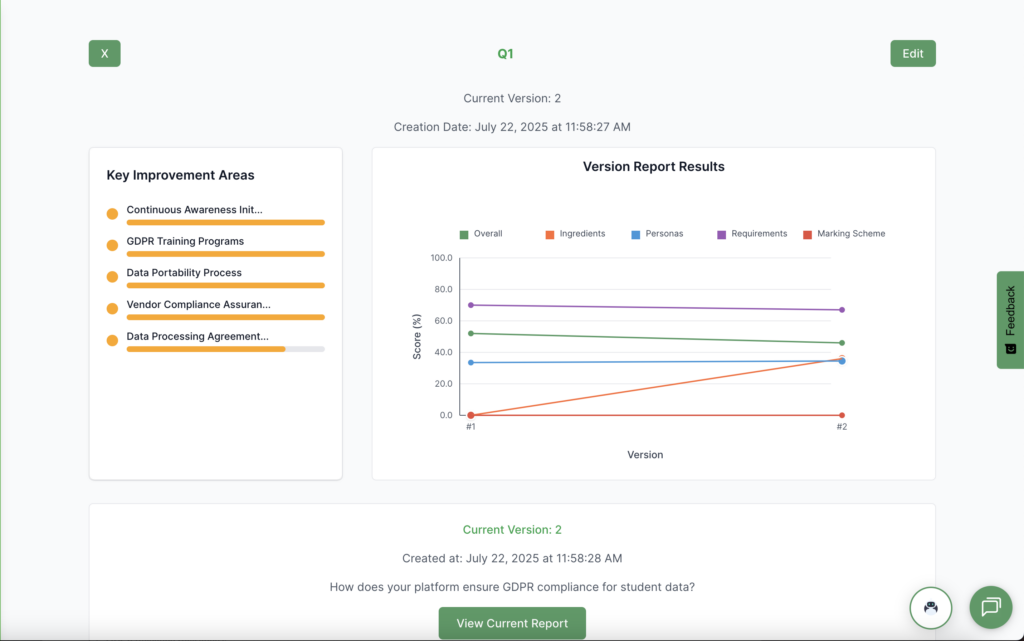
The page displays comprehensive information about the bid question:

- Question Name: The name or title of the question.

- Question Version:
- Due Date: The deadline for submitting the bid.

Tags: The tags associated with the question.

Getting Around
- Back to Bid: Go back to the parent bid by clicking in the top left corner on the X button
- Exporting: Click export to choose the way you want to view your bid question (PDF, CSV, Word)
- Edit Question: Click to edit this question
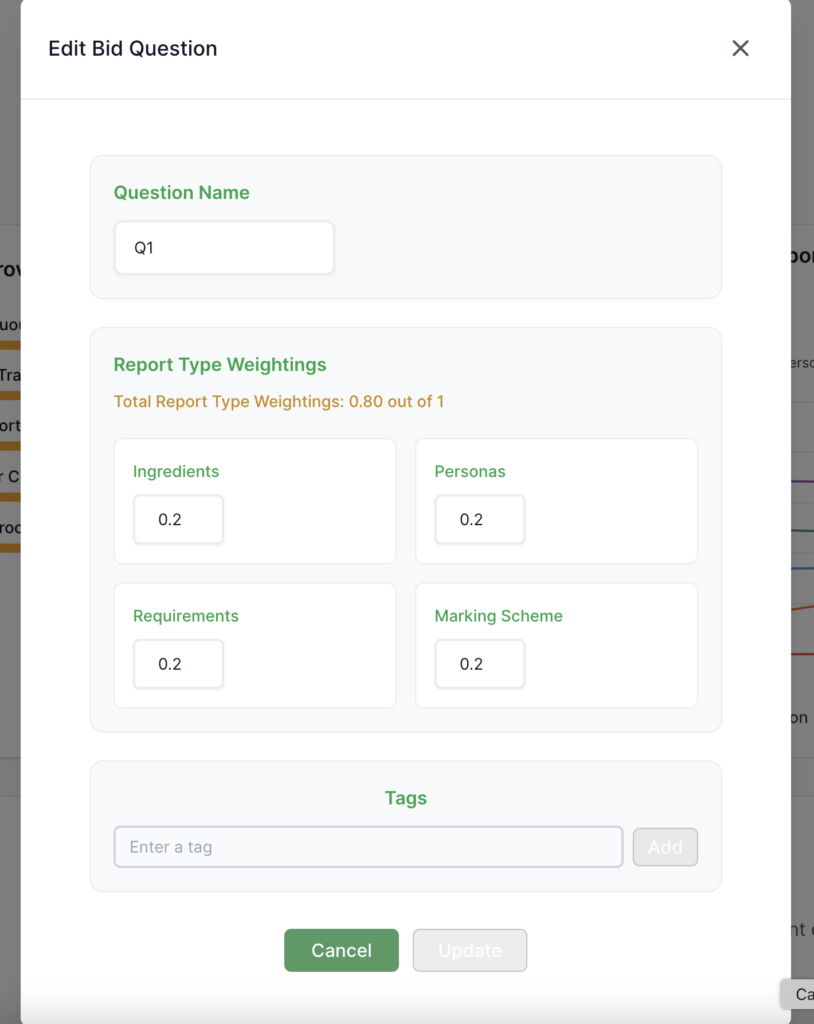
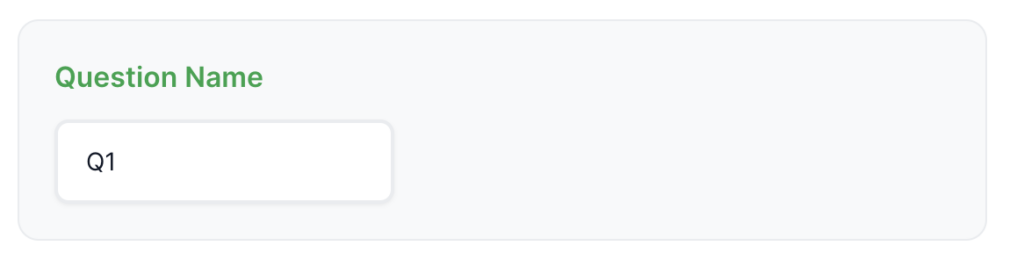
- Question Name
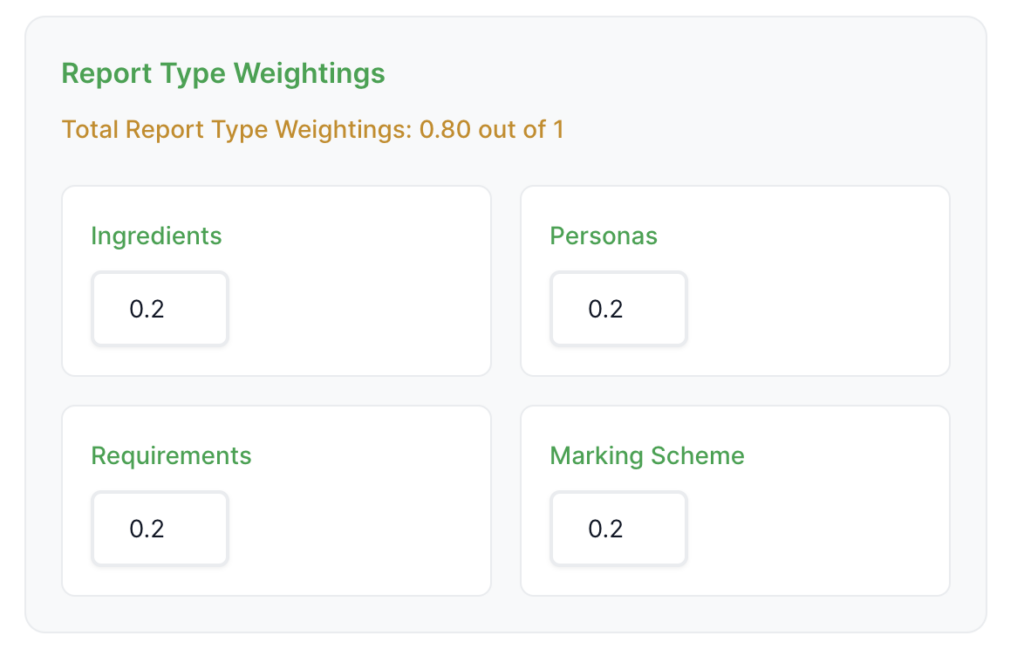
- Report Type Weightings
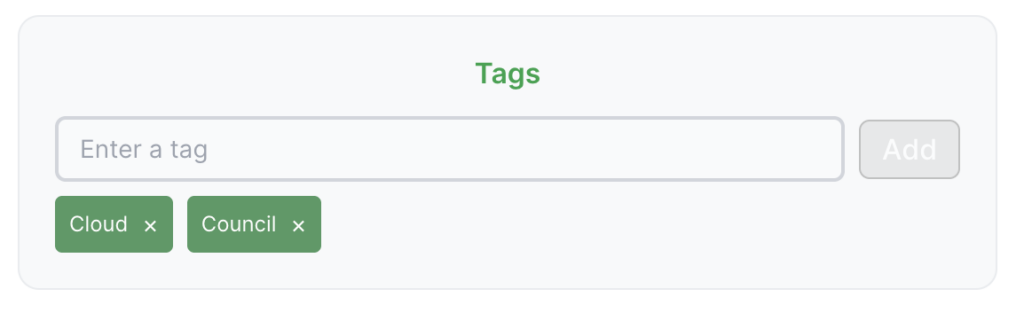
- Tags
- Click update to apply changes
Working with Question Data
Editing Question
- Click the Edit Question button
- Go to the Report page for this question
- Edit question title, text, or answer
- Saving changes creates a new version
Key Improvement Areas
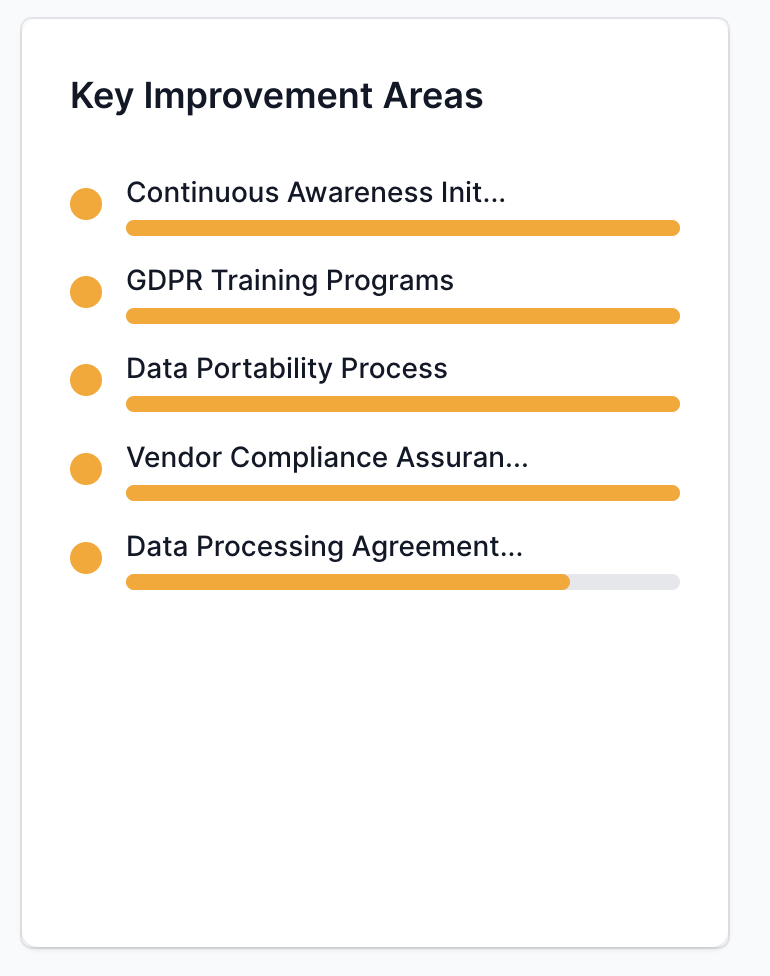
On the bid question page, after the reports are run, you can see which areas offer the greatest potential to improve your overall score. The chart highlights the top five areas with the biggest impact potential, calculated using a combination of report weighting, subcategory weighting, and current scores. The redder an area appears, the greater its potential for improvement. Focusing on these will have the greatest impact on your overall score.
Bid Question Versions
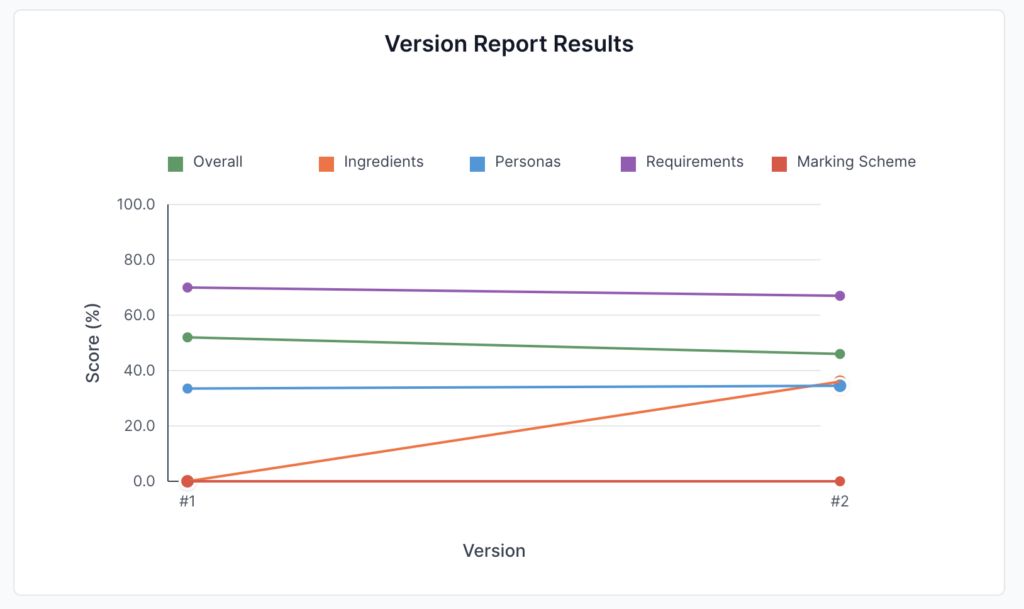
This chart on the bid question page will show the scores of each of your question versions as well as the breakdown per report type.
Updating the Response or Reports
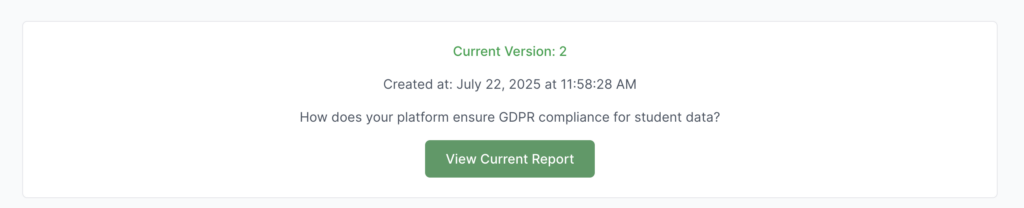
- Click on the “View Current Report” button to go to the Report page, where you can update the question, answer, word count, and reports for this question.
Version History
Viewing History
- Scroll to the Version History section

- View the list of previous versions
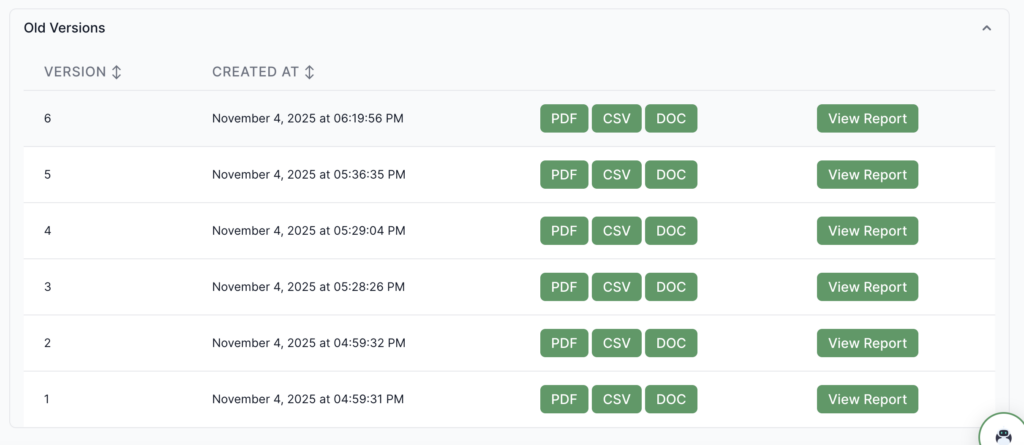
- See version numbers and creation dates
- Click on PDF, CSV, or DOC to export the specific version of the bid question. This will start a download of the file type, which you can view.
- Click on the “View Report” button to view the specific version question, answer, and reports
- This will give you a warning to let you know that its an older version that is readonly

Creating New Versions
- View the question on the Report page by clicking the “View Current Report” button
- Clicking save or running a new report creates a new version
- Previous versions are preserved
Comments and Collaboration
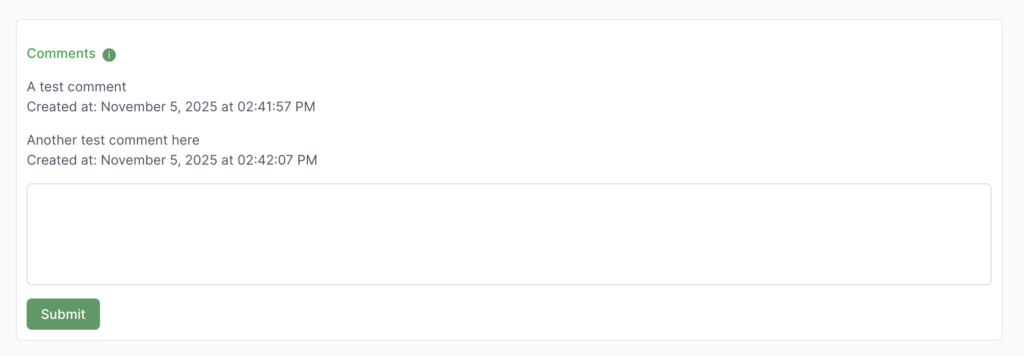
Viewing Comments
The page may display comments related to the question:
- Comment History: All comments on this question
- Comment Timestamps: When comments were made
Adding Comments
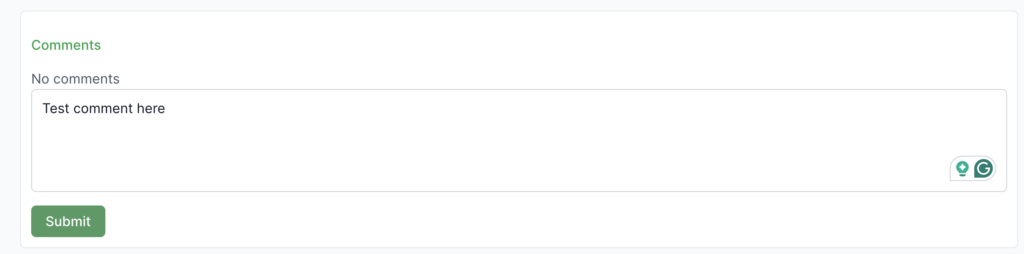
- Find the Comments section
- Enter your comment text
- Submit comment
- Comment appears in the comment history
Troubleshooting
Scores Seem Incorrect
- Verify Data: Check that the question and answer text are current
- Regenerate Reports: Try regenerating reports
- Check Configuration: Verify report configuration is correct
- Contact Support: If scores are consistently incorrect
Version History Not Showing
- Check Versions: Verify versions exist for this question
- Refresh: Refresh the page if history doesn’t load
- Check Permissions: Verify you can view version history
- Go Away and Back: Try navigating away and returning
Can’t Edit Question
- Check Permissions: Verify you can edit questions
- Go to Report Page: Use the Report page for editing
- Refresh: Refresh the page if the edit doesn’t work
- Check Bid Status: Ensure bid allows editing

