
Viewing Your Bid
The Bid page allows you to view and manage all details of a bid. From here, you can edit the bid, manage questions, collaborate with your team, and see participant activity. This page is accessed through the bid library once a bid has been created.
View Bid Details
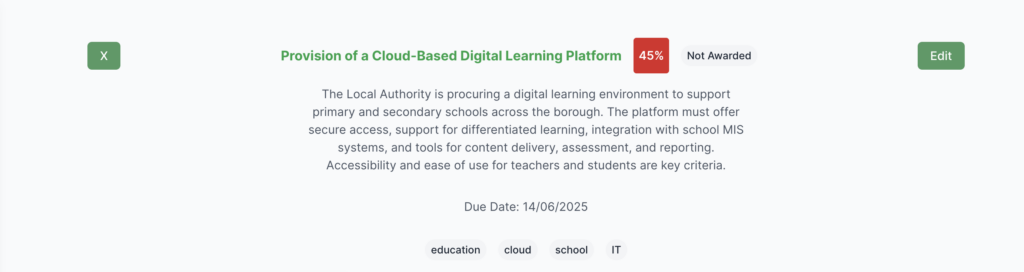
In the Bid page, you can see the following information at a glance:
- Title: The name of the bid.
- Due Date: The submission deadline.
- State: The current status of the bid (e.g., Draft, Submitted).
- Tags: Labels associated with the bid for organisation and filtering.
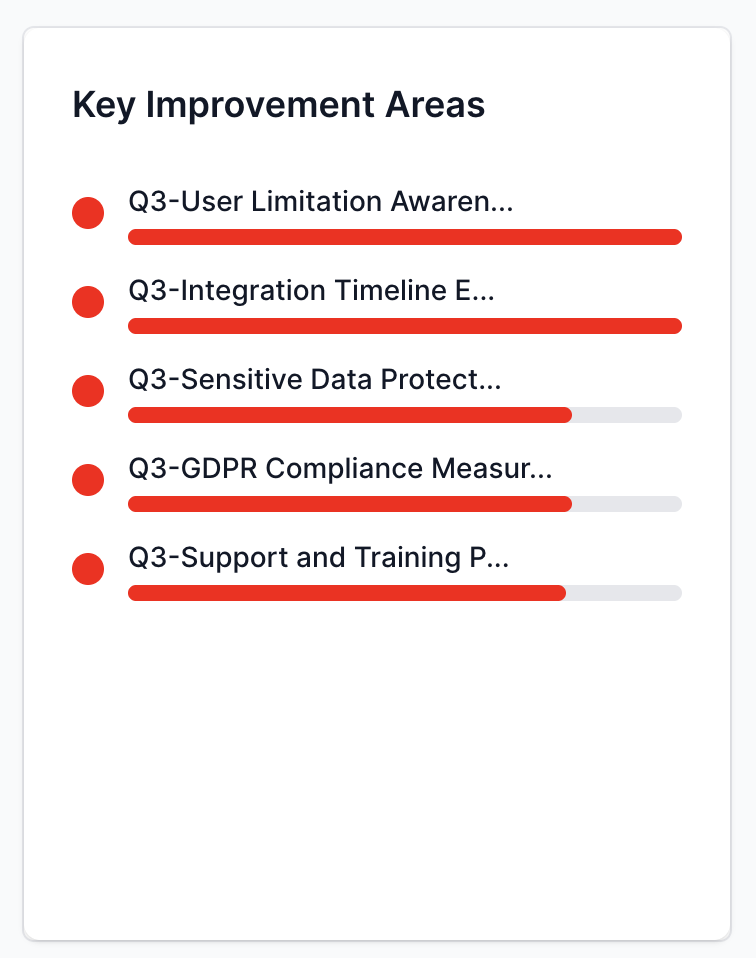
Key Improvements Areas
On the bid page, after bid questions are added and reports are run, you can see which questions and areas offer the greatest potential to improve your overall score. The chart highlights the top five areas with the biggest impact potential, calculated using a combination of bid question weighting, report weighting, subcategory weighting, and current scores. The redder an area appears, the greater its potential for improvement. Focusing on these will have the greatest impact on your overall score.
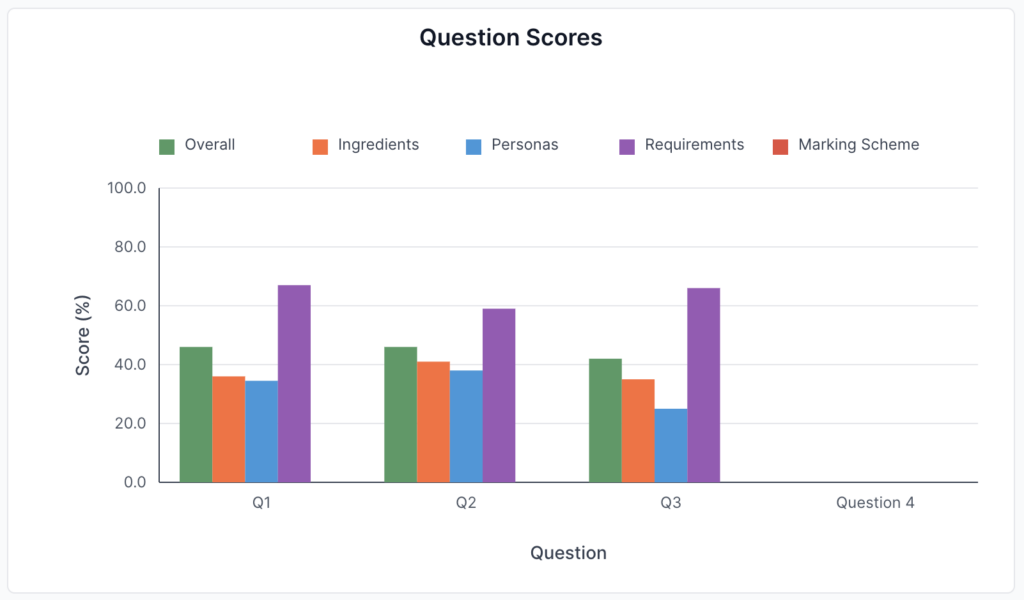
Bid Questions Scores
This chart on the bid page will show the scores of each of your questions as well as the breakdown per report type.
Edit Bid
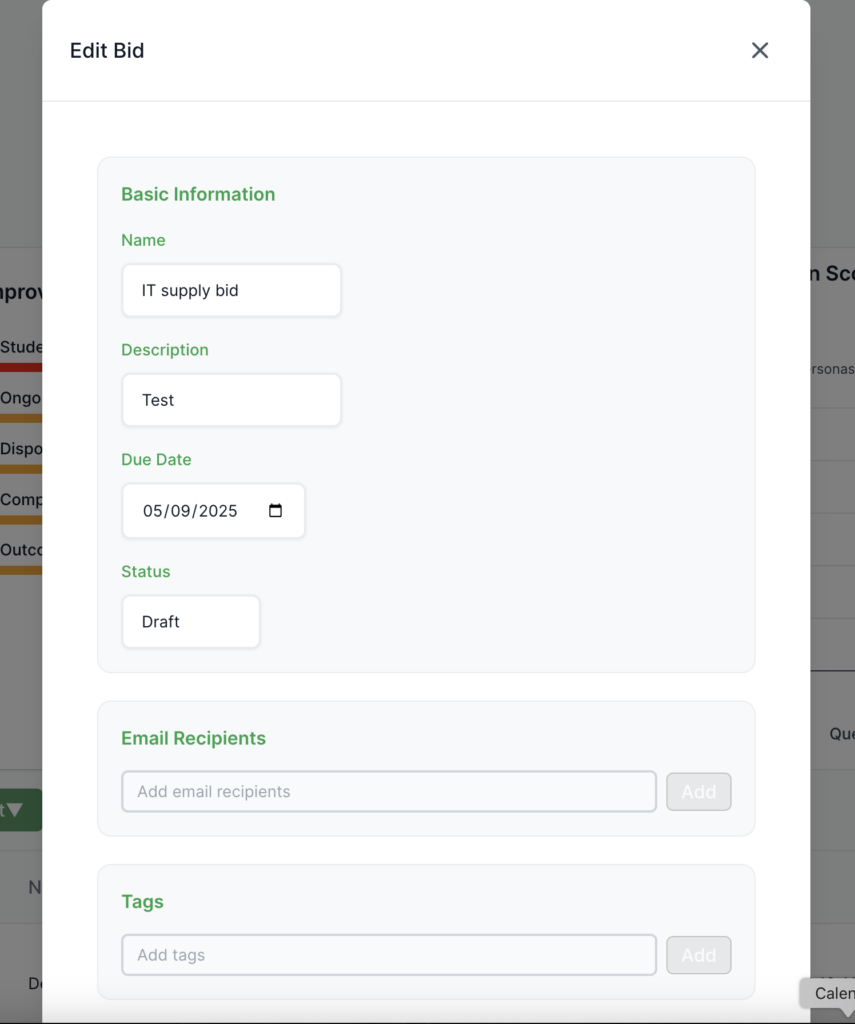
Click the Edit Bid button to update the bid’s details:
- Name: the name of the bid.
- Description: the description of the bid.
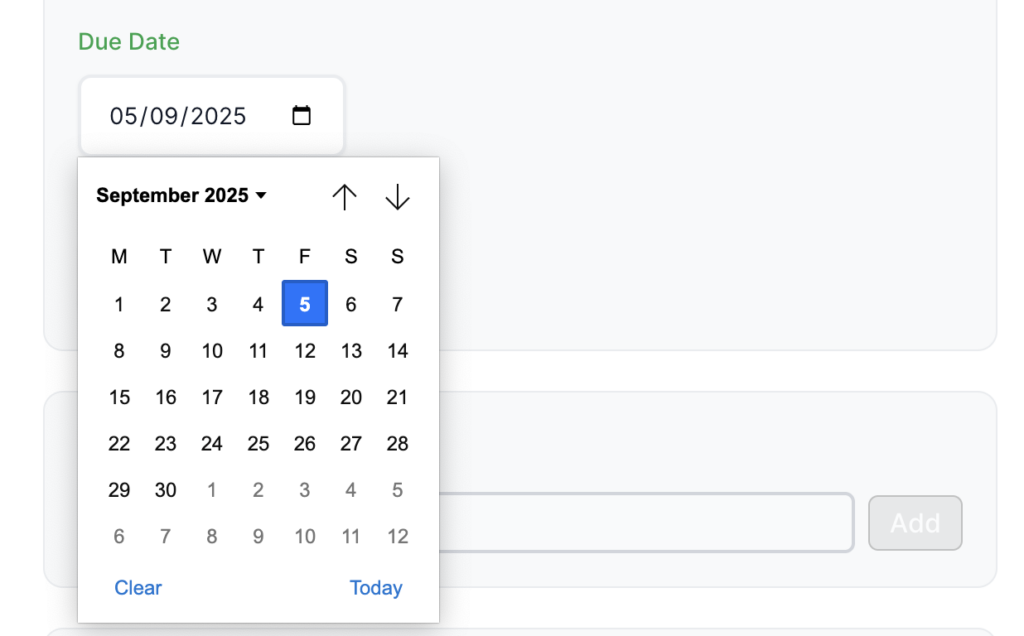
- Due Date: the submission deadline.
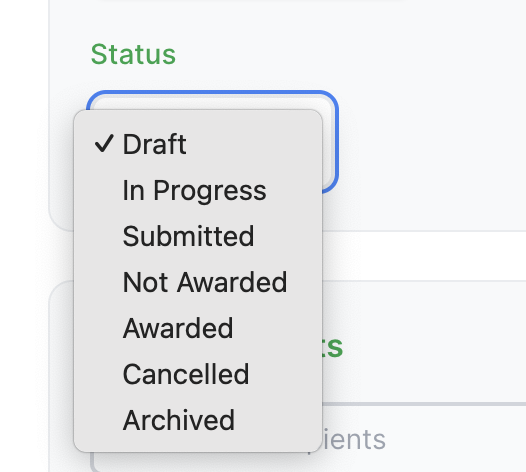
- Status: the current status of the bid (e.g., Draft, Submitted).
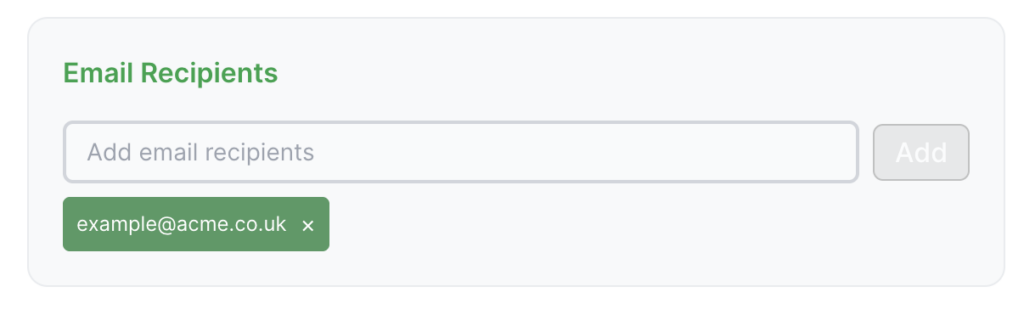
- Email participants: the email addresses of people you want to get a copy of a report when its generated automatically.
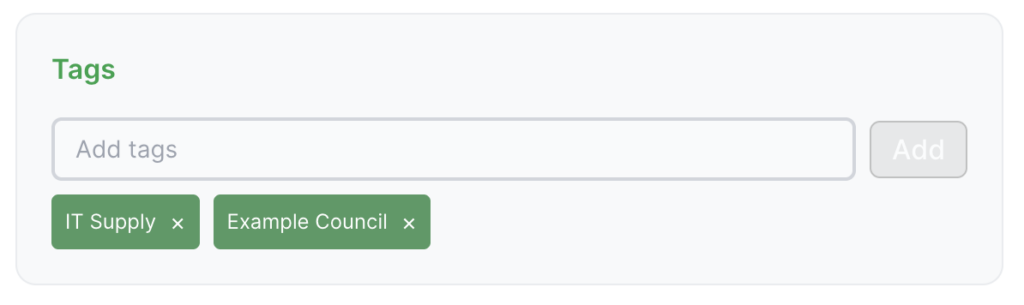
- Tags: Add or remove tags to categorise your bid.
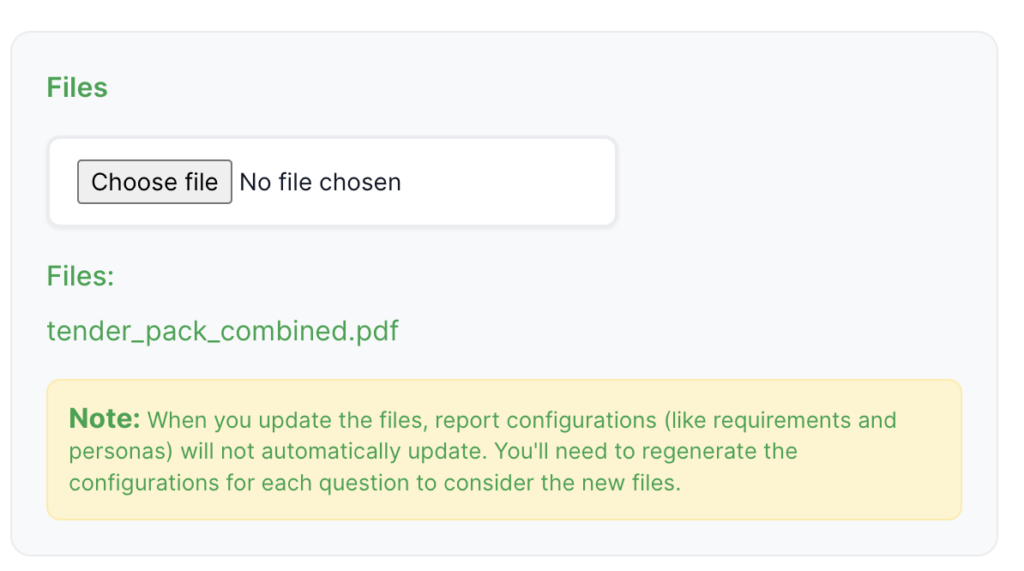
- Attached Files: Upload files associated with the bid. Note that adding or updating files will not automatically regenerate the report configuration. To apply the latest changes, you’ll need to update each question report configuration manually within the report page
- Question Percentages: Adjust the importance of each question.
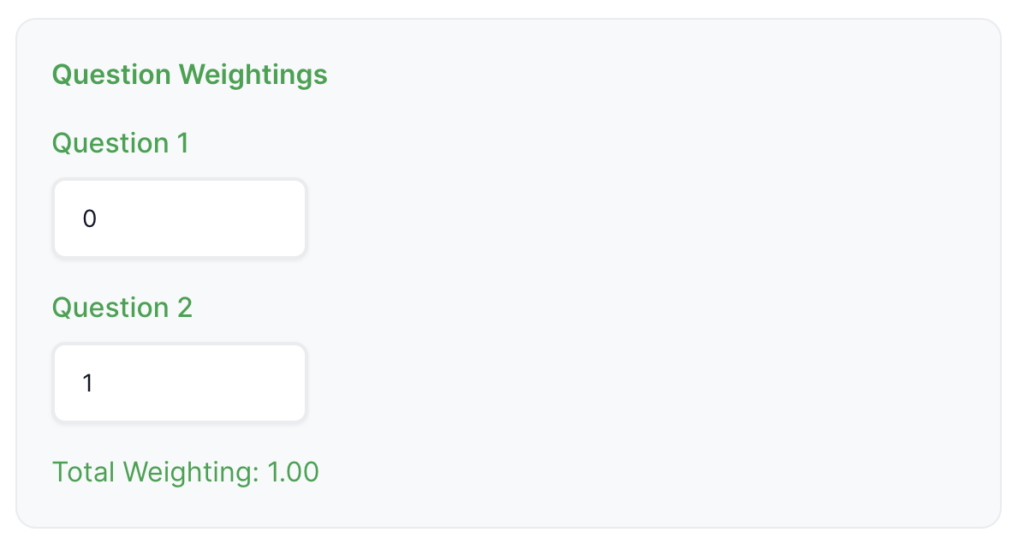
Steps:
- In the Bid page, click Edit.
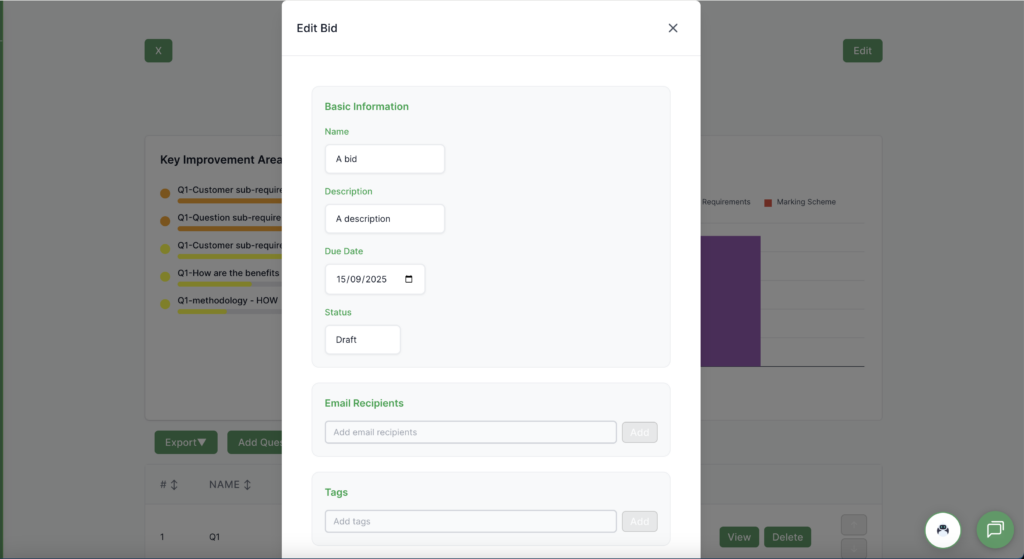
- Make changes to percentages, tags, or attachments.
- Click Save to apply your changes.

Questions
Add Bid Question
- Creates a new, empty question in the bid.
- Note: Personas, requirements, and other details must be added manually on the Report Page.
Steps:
- Click Add Question in the Questions section.

- A new empty question will appear at the bottom of the list.

View Bid Question
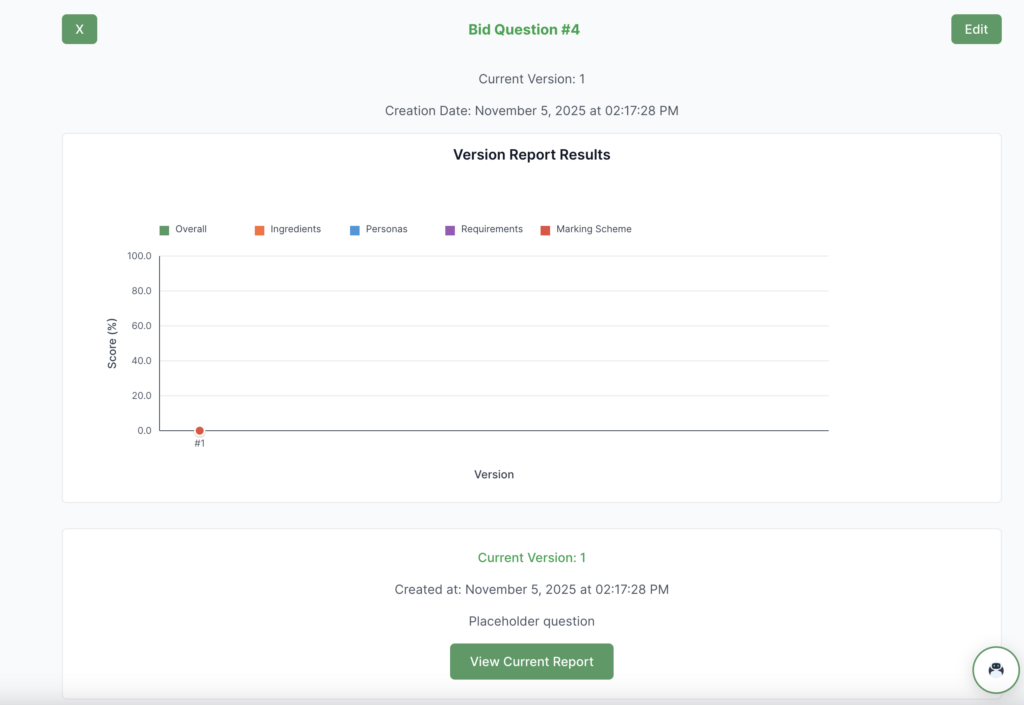
- Click the “View” button on a question to view its details.

- Click on the “View Current Report” button to go to the report page to add the bid question response and run analysis
Delete Bid Question
- Remove a question from your bid.
- Steps:
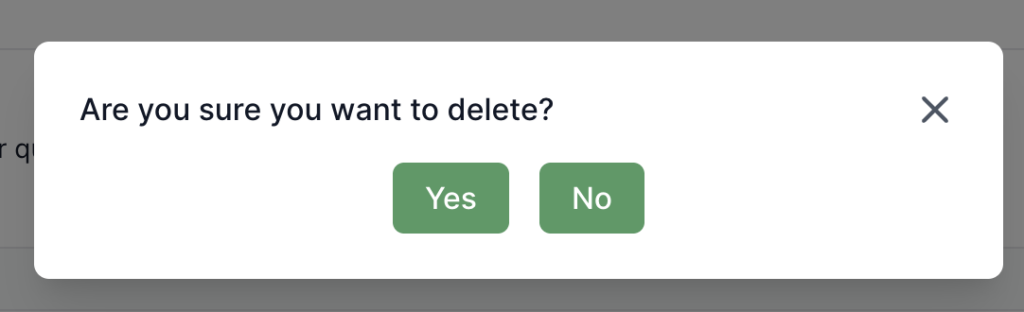
- Click the Delete button next to the question.
- Click “Yes” in the confirmation box to delete the bid question
- Note: This action cannot be undone.
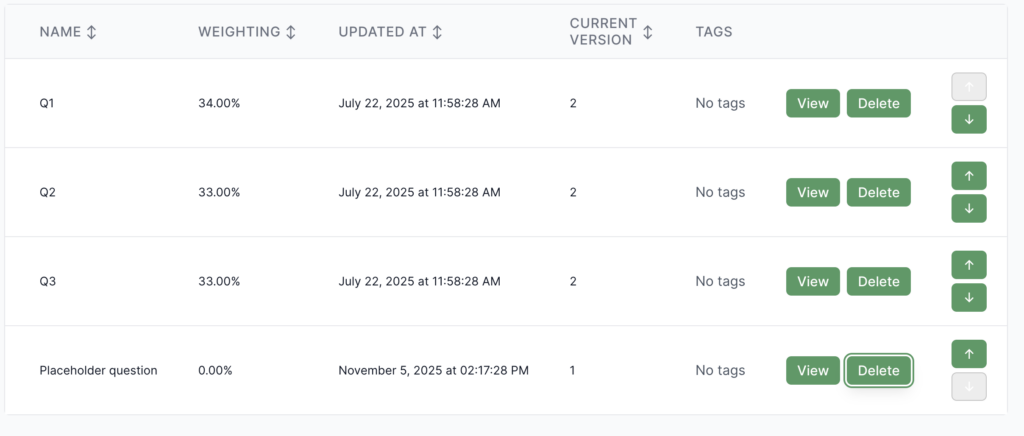
Change Question Ordering
- Rearrange questions to reflect your desired sequence.
- Steps:
- Scroll in the bid page’s bid question table till you see the bid question arrows
- Click on the up arrow to move the question higher in the order or down to go lower in the order.
Bid Participants
- Participants are automatically added when someone runs a report on a bid.

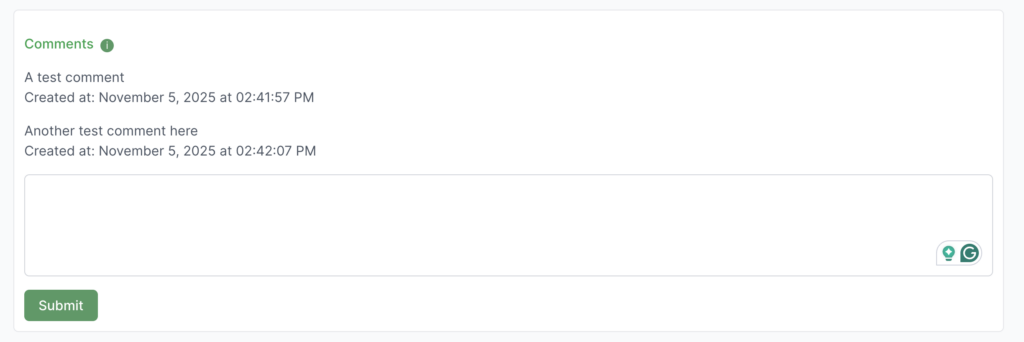
Comments
- Use the Comments section to collaborate with your team.
- Add notes, ask clarifying questions, or provide feedback directly on the bid.
Steps:
- Navigate to the Comments tab in the Bid page.
- Type your comment and click Submit.
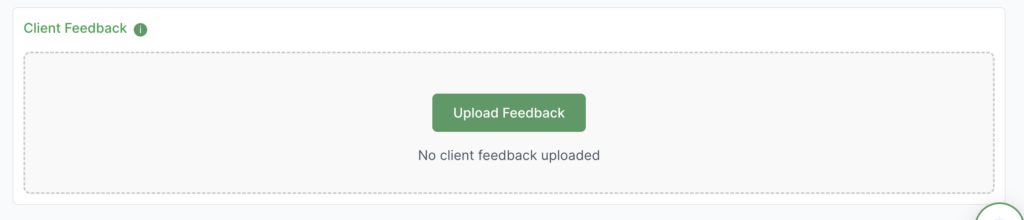
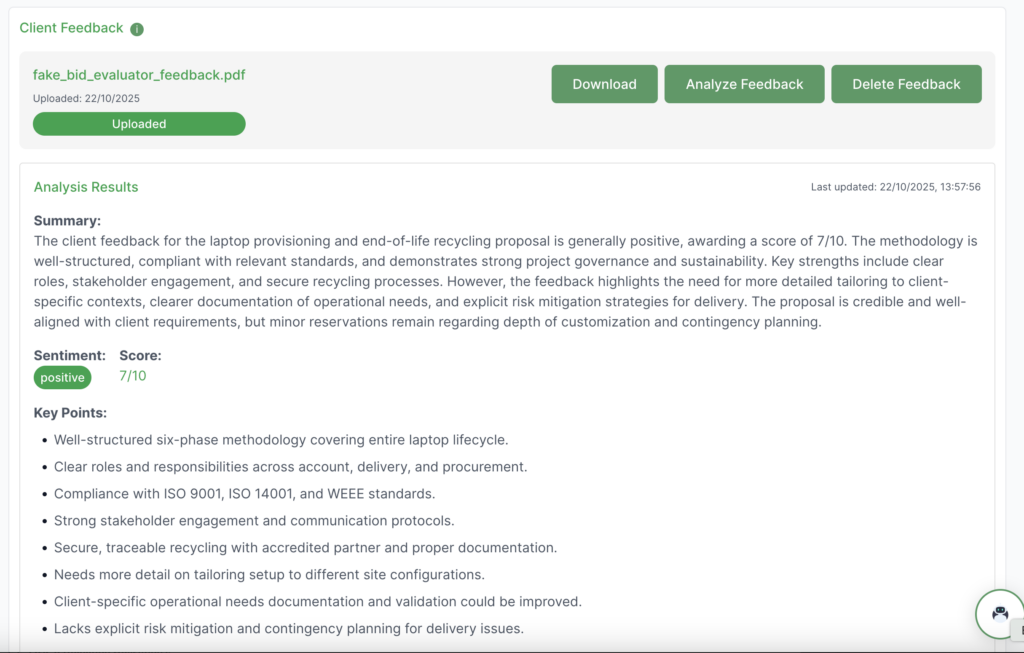
Client Feedback
Tips for Success
- Keep Information Updated: Regularly update bid status and details
- Use Tags: Add tags to organise bids (e.g., “2024”, “Client X”, “Won”)
- Add Email Recipients: Include team members who need updates
- Attach Documents: Keep all related files together in the Bid Store
- Generate Reports: Run reports regularly to see how you can improve
- Review Comments: Check comments from your team regularly
Troubleshooting
Can’t See Questions
- Make sure the bid has questions added
- Try refreshing the page
- Contact support if the issue persists
Files Won’t Upload
- Check that the file size isn’t too large
- Make sure the file type is supported
- Check your internet connection
- Try uploading one file at a time
Reports Won’t Generate
- Make sure you’ve selected at least one question
- Ensure you’ve selected at least one report type
- Wait a few moments – reports can take a minute to generate
- Make sure your questions have answers if the report requires them
Changes Won’t Save
- Check your internet connection
- Look for error messages on the page
- Try refreshing and making changes again
- Contact support if you continue having issues

