
How to improve a single response
Viewing a Single Response on the Platform
You can view and edit an individual response directly on the platform — ideal if you’re amending a draft or reviewing the detailed analysis from a past bid, but prefer working online rather than in Excel.
If you’re working on a draft response or wish to review a specific question, simply click the “View” button next to that question.
- If you’ve just uploaded a draft through Bid Analysis, you’ll automatically be taken to Screen 1.1 – Bid Screen.
- If you’ve logged in separately and want to access a specific bid:
- Click on Bid Library in the left-hand column.
- Locate the relevant bid using the search box on the right-hand side.
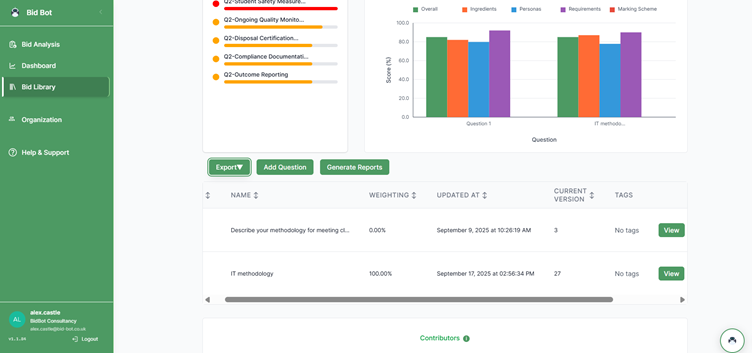
- – bid screen
Individual response page
You will then see the individual response page as below.
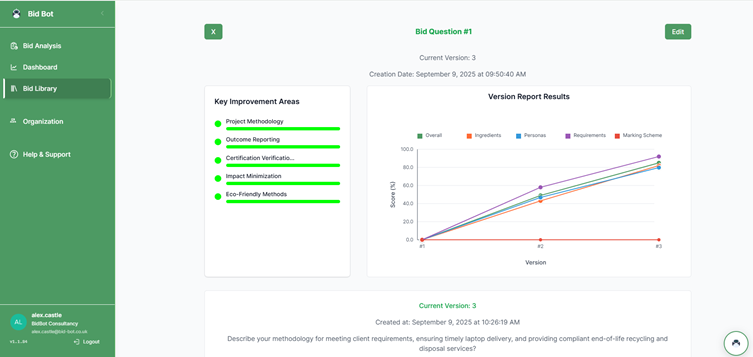
Select “view current report” in the middle of the page, below the “version report results”
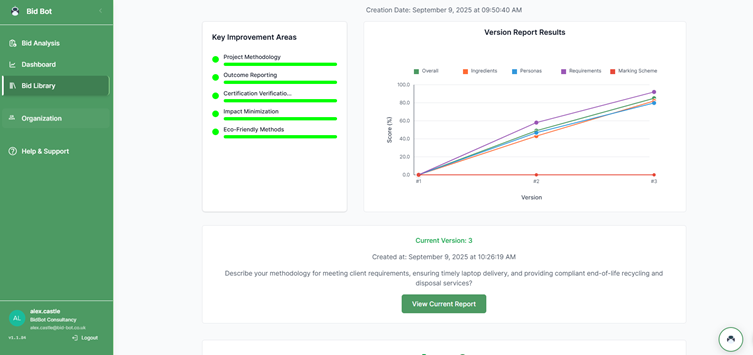
Response Page Overview
Once you reach the Response Page, you’ll see all key details and tools for managing your bid responses.
What you’ll see:
- Bid Information: Displays the bid name, question, and version.
- Version Control:
- Use the “Back” button to view all previous versions.
- You can select and revert to an earlier version if needed.
- Each time you run a report or click Save, the system automatically creates and updates a new version.
Response Box:
- For a new bid, the response box will either be:
- Empty (if you haven’t started writing yet), or
- Pre-filled (if you added text during bid creation).
- You can type directly into the box or copy and paste content.
- When you run a report, the system analyses your content and updates it automatically.
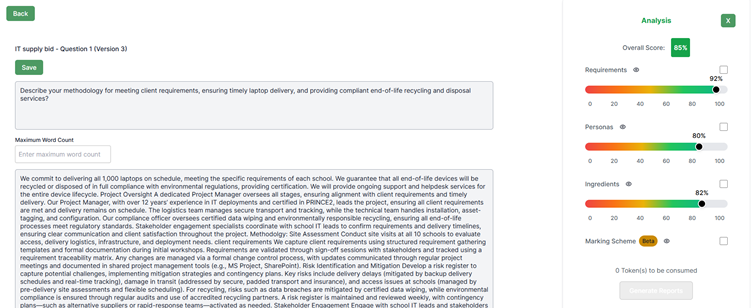
Using the Analysis Report
This section is where you will use the Analysis Report to review and improve your individual responses.
On the right-hand side, you will see the following analysis sections:
- Requirements
- Personas
- Ingredients (Best Practice)
- Marking Scheme
These sections are used to analyse your response. Each contains sub-categories that contribute to the overall category score.
Requirements
Click the eye icon next to Requirements in the right-hand column to view the detailed breakdown, as shown below.
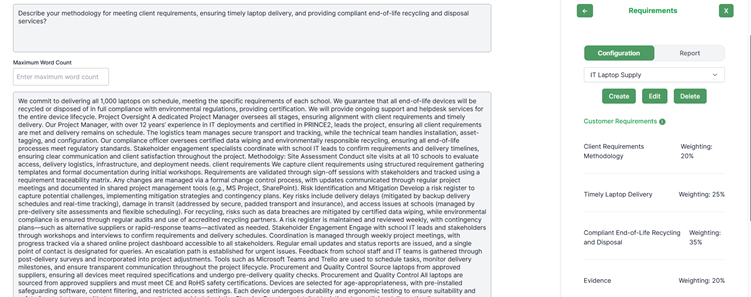
Requirements Configuration
If you completed the bid creation stage and selected Configurations, this section will be automatically set up for you.
Here, you will see the customer requirements generated from the system’s review of both the question and the documents you uploaded. The same applies to the question-specific requirements listed below.
This section ensures your responses objectively address the key customer requirements aligned with each question.
The “Create” option will be covered in a separate training guide — this section focuses on the pre-configured setup.
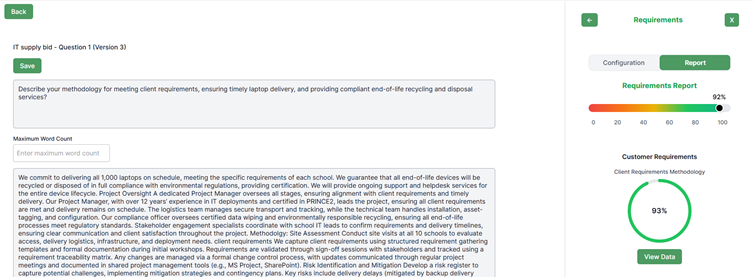
Reviewing Sub-Categories within Core Categories (Requirements)
In the right-hand column, you will see the sub-categories that sit beneath each core category.
The scoring data for all sub-categories combine to form the total score for that category.
Within these sub-categories, you can identify areas for improvement as well as aspects where your response performed well.
Understanding Sub-Categories
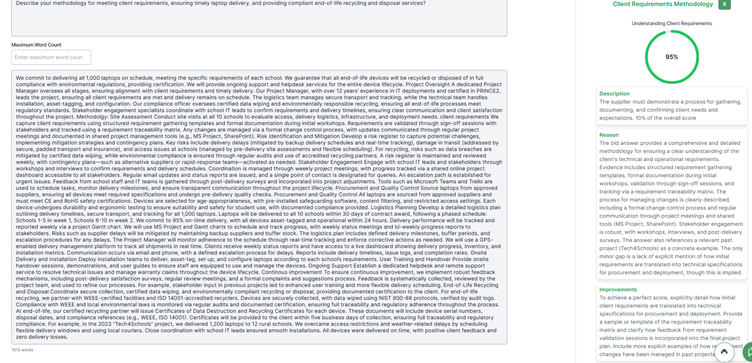
Each sub-category is displayed as shown in the image below.
You will see the following elements:
- Description: Outlines the requirement and highlights what the AI has identified as relevant to answering the question.
- Reason: Divided into two parts —
- What you did well
- What could be improved
- Improvement: Provides guidance on how to enhance your response — offering a non-intrusive, AI-assisted review.
If you selected the “Suggested Paragraph” option when setting up your bid, you will also see automatically generated text beneath the improvement section. This can be used to strengthen your response.
The role personas, ingredients (best practice) and marking scheme all work in the same way so we will not cover them in detail here but will provide additional bespoke training manuals as to what they are.

