
How to upload, review and store a past bid
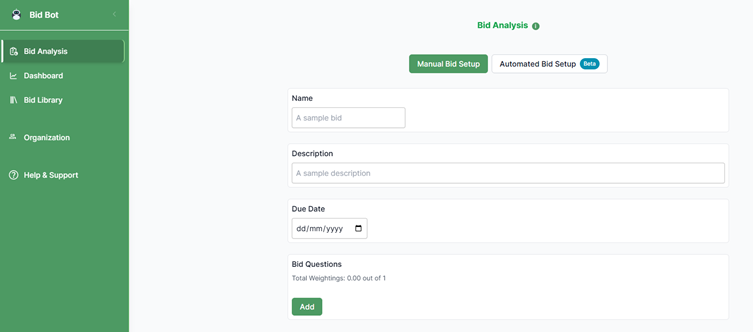
You have the option for manual bid setup or automated bid set-up. We will be doing a manual bid set-up.
Basic information & bid question
- Name: Enter a clear title so you remember the bid.
- Description: High-level summary in a few words of the bid.
- Due Date: Select the submission deadline date from the calendar.
Bid questions
- Bid Questions: Add each question you want to answer for this bid.
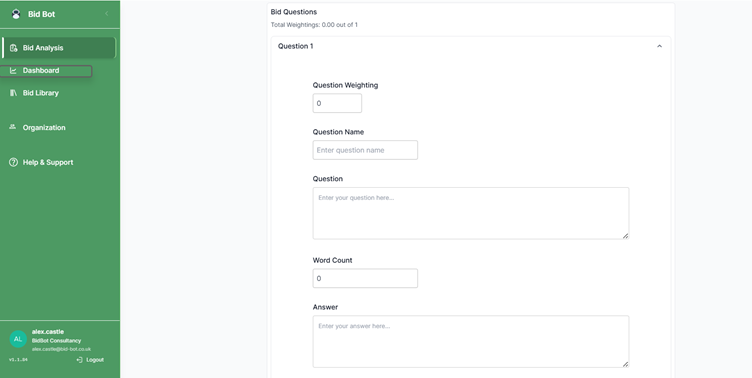
- Question Weighting: Assign importance to each question relative to others.
- Question Name: Give each question a short name for reference.
- Question: The full text of the question you will address.
- Word Count: Indicate target or current number of words for the answer.
- Answer: If you are at draft stage or reviewing a previous bid, enter your draft response here.
- Continue adding questions in this above format.
Analysis Options
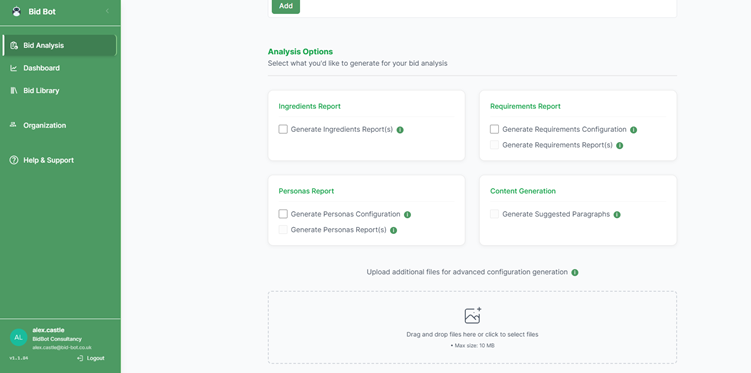
When creating a new bid, select all options — including:
- Generate Requirements Configuration
- Generate Personas Configuration
- Generate Ingredients Report
- Generate Requirements Report
- Generate Personas Report
- Generate Suggested Paragraphs – if you want to improve the text with automation, if not and you are purely reviewing the past bid – do not tick this as it will take longer to run.
Selecting all options ensures the platform fully analyses your bid against the specification, configures requirements and personas, and generates all relevant reports.
This process ensures your workstation is fully set up for drafting, reviewing, and automating content creation across each question.
When you navigate through the Bid Library → Select Bid, you will see that the entire analysis has already been completed for you — with the whole bid reviewed in under two minutes.
Save to Bid Library
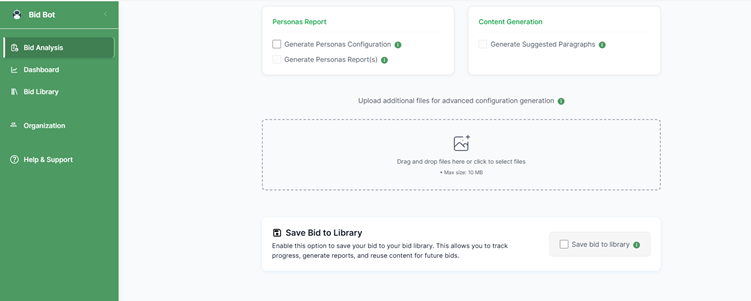
If you want your data to be stored in the Bid Library for future reviews or to reuse content, tick the box.
If you prefer to run the reports without saving the data, leave the box unticked — the system will generate a downloadable Excel file containing the data instead.
Generating Analysis
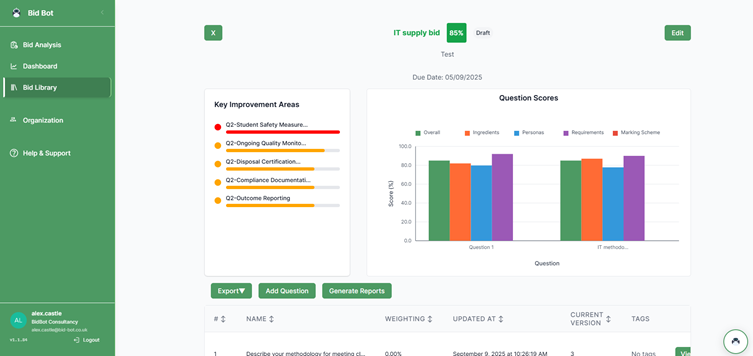
Once you have clicked “Generate Analysis” and saved to the Bid Library by ticking the checkbox, you will automatically be redirected to the Bid Page, as shown in the image below.
From this page, you can export the full bid by clicking the “Export” button located below the Key Improvements section.
You will then have the option to export in the following formats:
- CSV (Excel)
- DOC
- Word Document
After clicking Export, the file will begin downloading and will appear in your browser’s download icon in the top-right corner.
You can also access the data across all of your bid in the dashboard as you can see in the left green panel.

