Have a Question?
Bidding Assistant
Overview
Bid Bot includes an AI-powered chat interface that provides real-time assistance and support. This guide explains how to use the chat feature to get help with bids, questions, and platform features.
Prerequisites
- A Bid Bot account
- Access to the chat interface
- Internet connection for real-time chat
Accessing the Chat Interface
Chat Widget
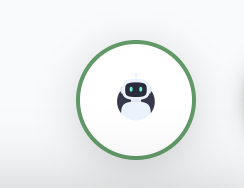
The chat interface is available as a floating widget:
- Look for the Chat button in the bottom right corner
- Click to open the chat widget
- Chat interface opens in a pop-up/overlay
Chat Interface
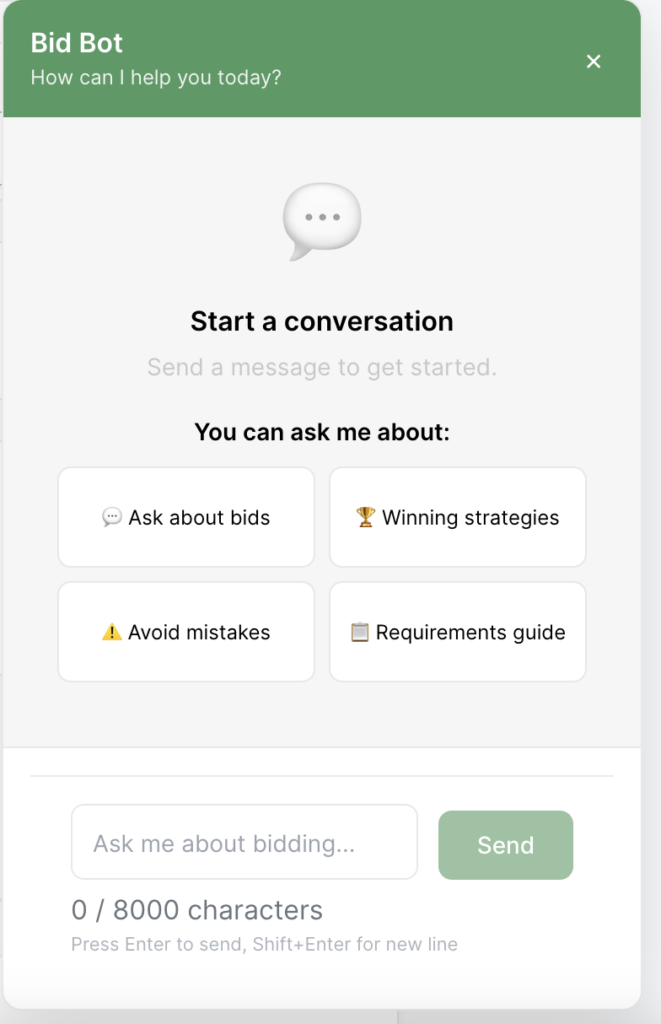
- Chat Header: Shows chat controls
- Message History: Displays messages in the current session
- Message Input: Enter and send messages
- Chat Controls: Minimise and close chat
Understanding Chat Context
Context Types
The chat understands different contexts:
All Bids Context
- General Questions: Ask general questions about Bid Bot
- Platform Features: Get help with platform features
- Usage Guidance: Learn how to use features
- Best Practices: Get recommendations
Bid Context
- Bid-Specific Questions: Ask questions about a specific bid
- Bid Analysis: Get help analysing a bid
- Bid Improvement: Receive suggestions for improving bids
Bid Question Context
- Question-Specific Help: Get help with specific questions
- Answer Guidance: Receive guidance on answering questions
- Analysis Help: Understand question analysis reports
Dashboard Context
- Analytics Questions: Ask about dashboard analytics
- Report Interpretation: Get help understanding reports
- Performance Insights: Receive performance insights
Context Awareness
The chat automatically understands:
- Current Page: Where you are in the application
- Open Bid: If you have a bid open
- Selected Question: If you’re viewing a specific question
- Dashboard Filters: Current dashboard filters
Using Chat
Starting a Conversation
- Open Chat: Click the chat widget to open
- See Context: Chat shows current context (if available)
- Type Message: Enter your question or request
- Send: Click send or press Enter
Sending Messages
- Type your question or request in the message input
- Press Enter or click the Send button
- Message appears in chat history
- AI processes and responds
Message Guidelines
- Be Specific: Ask specific questions for better answers
- Provide Context: Include relevant context in questions
- Clear Language: Use clear, understandable language
- Reasonable Length: Keep messages reasonable in length
Conversation Management
Current Session
The chat maintains messages in the current session:
- Message Thread: All messages in the current session
- Message Timestamps: When each message was sent
- Context: What context does the chat have
Chat Features
Real-Time Responses
The chat provides real-time AI responses:
- Quick Responses: Fast response times
- Contextual Answers: Answers based on the current context
- Comprehensive Help: Detailed and helpful responses
Suggested Responses
The chat may provide:
- Suggested Follow-ups: Related questions to ask
- Quick Actions: Suggestions for next steps
- Helpful Links: Links to relevant documentation
Chat Analytics
If available:
- Usage Stats: See how often you use chat
- Feature Insights: Understand chat usage patterns
Best Practices
Effective Communication
- Be Clear: Ask clear, specific questions
- Provide Context: Include relevant context in questions
- Be Patient: Allow time for responses
- Follow Up: Ask follow-up questions if needed
Using Context
- Use Bid Context: Ask bid-specific questions when viewing bids
- Use Question Context: Ask question-specific questions when viewing questions
- General Questions: Use general context for platform questions
- Context Switching: Chat adapts as you navigate
Using Chat Effectively
- Ask Specific Questions: Get focused, helpful answers
- Use Context: Take advantage of contextual chat when viewing bids/questions
- Follow Up: Ask follow-up questions for clarification
- Note Answers: Keep track of helpful information from chat
Troubleshooting
Chat Won’t Open
- Check Button: Verify chat button is visible
- Refresh Page: Refresh the page if the chat doesn’t open
- Browser: Try a different browser if the issue persists
- Check Permissions: Verify you have access to chat
Messages Not Sending
- Check Internet: Verify internet connection
- Wait: Allow time for the message to send
- Try Again: Retry sending message
- Check Length: Ensure message isn’t too long
No Response from AI
- Wait: Allow time for AI to process and respond
- Check Connection: Verify internet connection
- Retry: Try sending the message again
- Check Context: Ensure context is properly set
Chat Context Wrong
- Navigate: Navigate to the correct page/bid/question
- Refresh: Refresh the page if the context seems wrong
- Contact Support: If context is consistently wrong
Message History Issues
- Refresh: Refresh the page to reload messages
- Check Storage: Ensure browser storage is available
- Contact Support: If messages are consistently lost

