
Tender Finder
Tender Finder allows companies to find public-sector contracts suitable for them on the BidBot platform.
How it works
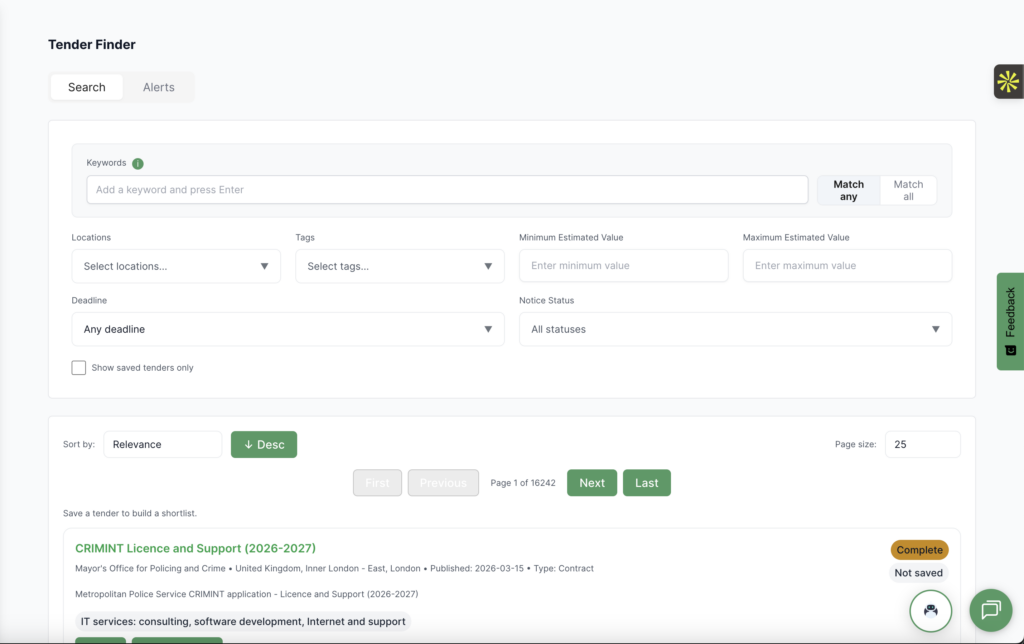
Tender Finder is a new page accessible via the sidebar. Here, the customer can filter tenders by amount, date, location, tags, notice types, and notice statuses to find the tenders they want to go for. Customers can save these tenders to come back to them later. We currently collect tenders from three places Contracts Finder, Public Contracts Scotland and Find a Tender. We collect information on tenders spanning back the last 25 years. With new tenders being added every day.
Searching for a tender
Use the search bar and filters to narrow down tender results and find the opportunities most relevant to your business.
Keywords
Search by words or phrases that appear in the tender title, description, buyer name, dates, or other notice information.
Locations
Choose one or more locations to focus on tenders in the regions that matter to you.
Tags
Use CPV code tags to filter by sector, industry, or service area and quickly find relevant opportunities.
Minimum and maximum value
Set a minimum and maximum contract value to only show tenders within your preferred budget range.
Deadline
Use the deadline filter to find tenders based on how much time is left before they close. For example, you can look for tenders that have already closed, are closing soon, or have longer remaining timescales.
Notice types
Filter by notice type to focus on the stage or kind of opportunity you are looking for. Available notice types include:
-
Contract
-
Award
-
Prior Information
-
Contract Modification
-
Tender
-
Cancellation
-
Other
Notice statuses
Filter by notice status to refine results based on where each tender is in its lifecycle. Available statuses include:
-
Planning
-
Planned
-
Pending
-
Active
-
Awarded
-
Complete
-
Unsuccessful
-
Withdrawn
-
Cancelled
-
Terminated
Tips for better results
Try combining several filters to make your search more precise. For example, you might search by keyword, select a location, and set a value range to find the most suitable tenders quickly.
View Saved Tenders
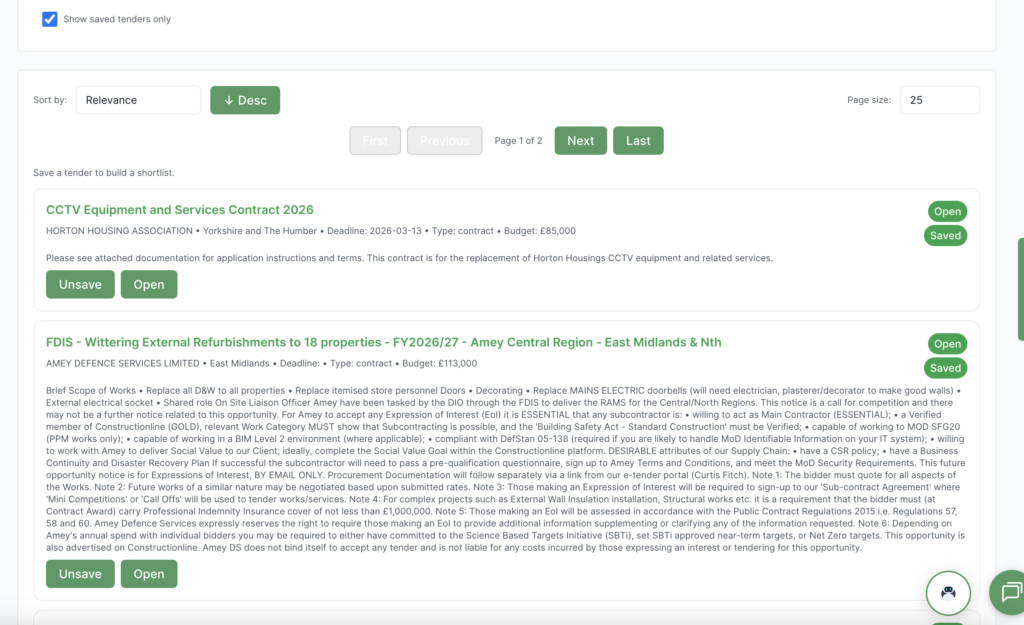
Once you have found tenders you are interested in, you can click on the tender’s “Save” button to save it for a later date. To view all saved tender click on the “Show saved tenders only” checkmark. To view the tender at source, you can click on the tender’s “Open” button to open it from where the tender comes from.
Tender Alerts
How to create an alert
You can also configure tender alerts to notify you of any new tenders that have come out today. To do this, click on the “Alerts” tab at the top of the pag,e then click on the “Create Alert Rule” button to open up the alert configuration pop-up.
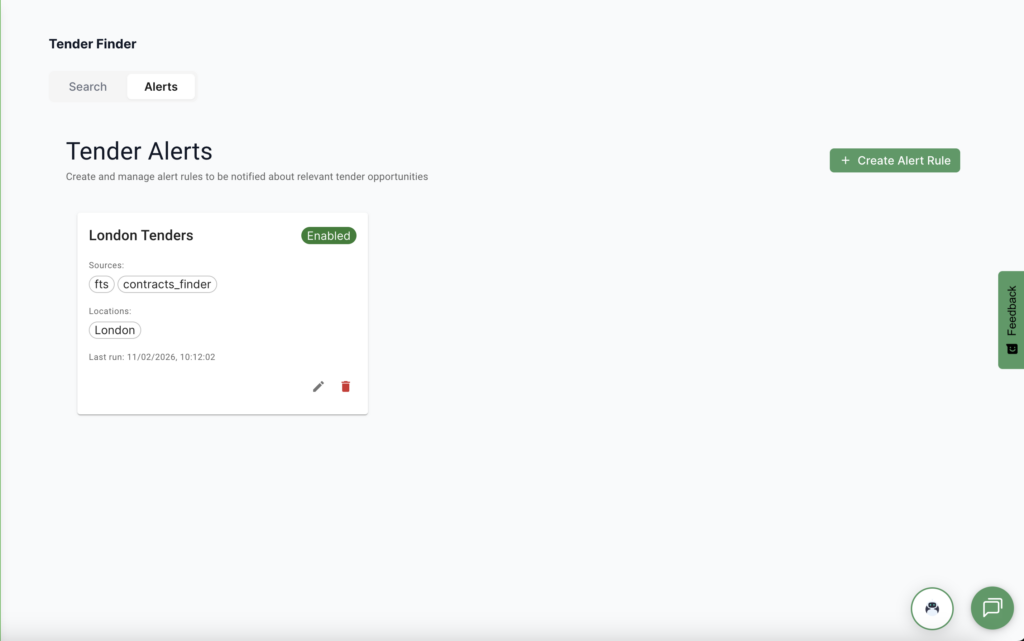
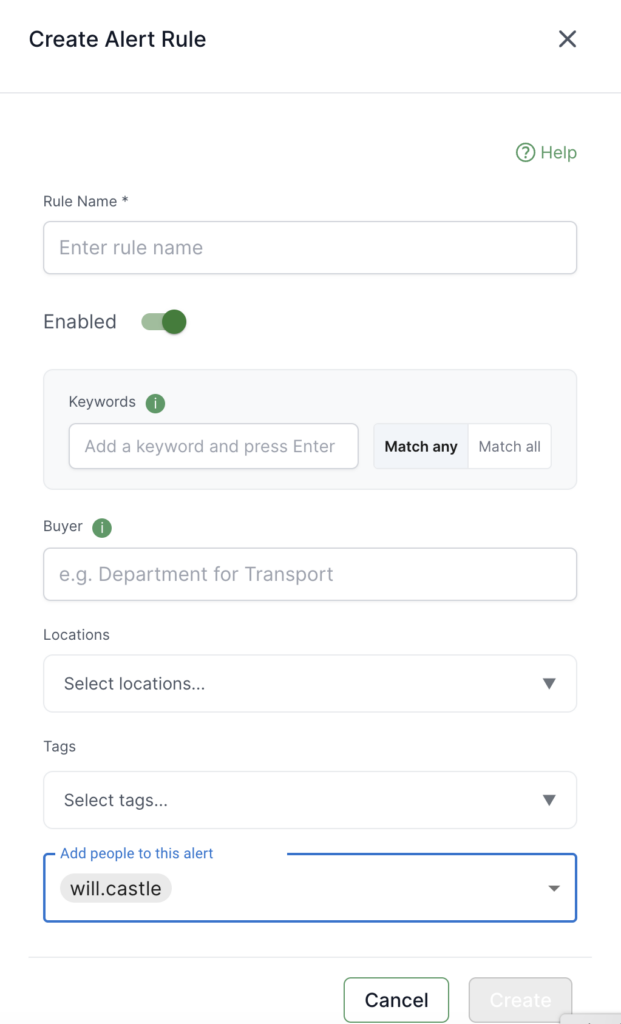
Here you configure the types of tenders you want to be alerted about. Firstly, create a suitable alert rule name for the tenders you want to find so you can easily identify it if you create more in the future. Then, you can decide which sources you want to get your tenders from as well the criteria to filter the tenders: keywords, buyer, locations, and tags. Once you have configured your alert press on the “Create” button. Your alert has now been created. Every morning BidBot will now find tenders that match the criteria you have specified and email them to you. To delete alerts click on the trashbin icon on the tender alerts page. To further customise or change you alert click on the pencil icon on the tender alerts page.
Tips for better results
Set up your alert with broad criteria to begin with (many cpv codes and either no keywords or loads of keywords where it will match at least one), then narrow it down over time based on the results you receive. This makes it easier to fine-tune the alert and improve the relevance of matches.
If your alert is not returning the results you expect, use the Search tab with the same criteria as your alert. This can help you confirm whether the criteria are working as intended and identify any settings that may need adjusting.

