
How to Navigate the Bid Response Page
This training guide explains the purpose of the different text boxes, buttons, and reports found on the Bid Response Page.
As shown below, this is the main response interface. To access it, navigate to the Bid Library via the left-hand sidebar, select the bid you’re working on, then click on the specific question you wish to respond to — this will bring you to the Bid Response Page.
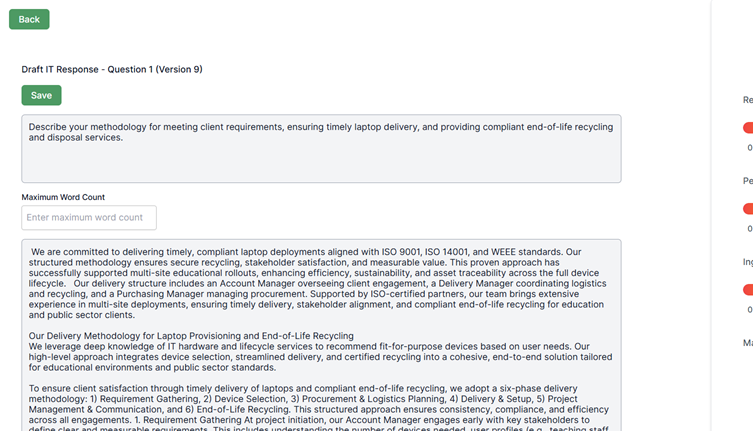
Left-Hand Side of the Page
Starting with the left-hand side of the Bid Response Page:
- Back Button – Located at the top left. This allows you to return to the question page.

⚠️ Important: If you click the back button before running a report or saving your work, your progress will not be saved.
- Question Title – Found below the back button and above the save button. This displays the question title, which can be edited on the Question Page (accessible by clicking Back — but make sure you click Save first to maintain version control).

- Save – this box allows you to save your current response.

- Question Text Box – Located below the save button, this box displays your pre-created question (if your bid was set up in advance). If it’s blank, manually enter the question here, making sure to include any sub-question requirements.

- Maximum Word Count – Positioned beneath the question box. Enter the maximum word count for your response here; the system will automatically assess your answer against this limit.

- Answer Box – This is where you write or paste your response. If you added content during the bid analysis or creation stage, it will appear here automatically.

- Word Count Display – Located below the answer box, this shows your current word count in real time.
Right-Hand Side of the Page
Now let’s look at the right-hand side of the page — the Analysis area, which is used for bid reviewing. This is where you can generate reports to review and assess your individual response.
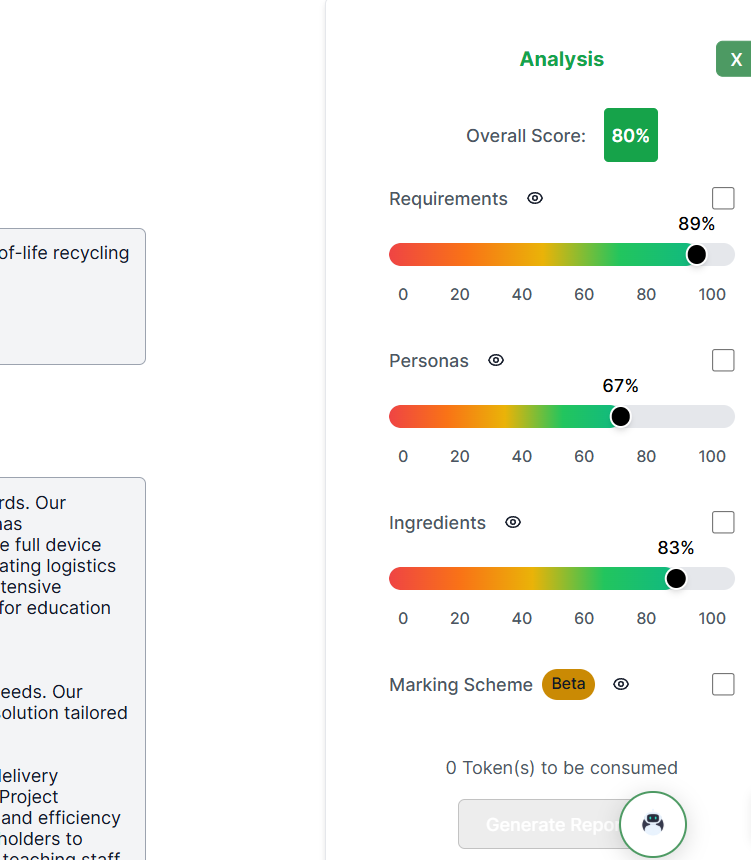
The Green “X” – Clicking this icon will expand your screen by hiding the Analysis panel.
Note: “Analysis” is currently the name of the review report section, but this will soon be renamed to Review.

Overall score – this is the overall score of this singular bid response.

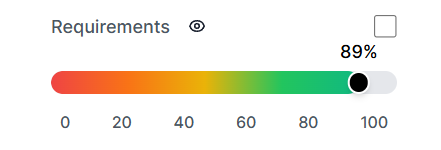
Requirements – this is the total score between your customer and the question requirements.
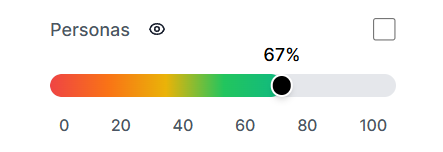
Personas – this is the total score between your role personas.
Ingredients (best practice) – this is the total score for your ingredients (bid writing best practice).


