
Have a Question?
Bid Reports in PDF
Overview
PDF exports provide a formatted, printable document containing all your bid information in a professional, presentation-ready format. PDFs are ideal for sharing with clients, archiving, and printing for reviews.
Prequisites
- Bid Bot account
- Access to a bid
- Reports generated (to include report data in PDF)
How to Export
From Bid Viewer
- Navigate to Bid Library
- Select bid
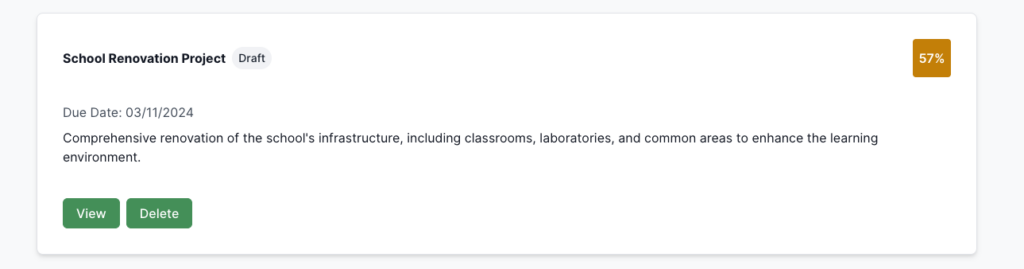
- Ensure reports generated (if needed)
- Click Export dropdown
- Choose Export as PDF
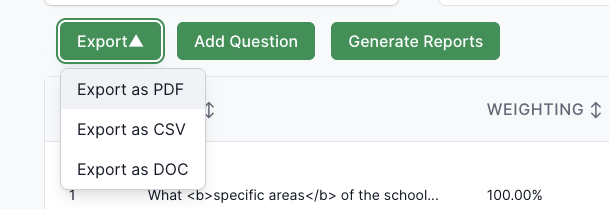
- Wait for generation and download
- File auto-saved with name and timestamp
File Naming
- Format:
bid-[BidName]-[Date].pdf - Example:
bid-My-Project-Bid-15/01/2024.pdf - Note: Date format DD/MM/YYYY
What It Contains
Bid Overview Section
Complete bid overview:
- Bid Name: Title as document header
- Bid Description: Full description
- Status: Current status with visual indicator
- Tags: Associated tags displayed as labels
- Metadata Table: Due date, created date, updated date, contributors, overall bid score
Questions and Answers Section
For each question:
- Question Header: Number, name, weighting
- Question Content: Full question text, complete answer with preserved formatting, word count, individual question score
Reports and Analysis Section (if generated)
Ingredients Report
Category summaries, ingredient-specific feedback, improvement suggestions
Requirements Report
Each requirement listed with status, grouped by type, score breakdowns
Personas Report
Names and roles, individual scores, weighted scores, alignment percentages
Marking Scheme Report
Individual criteria scores, category scores, overall score, distributions
Additional Sections
- Comments: Formatted as callouts or side notes
- Version History: Question version info if multiple versions
- Export Date: Timestamp in footer
- Document Metadata: Title, author, creation date
Use Cases
- Client Submissions: Professional format, comprehensive, branded-ready, archivable
- Internal Reviews: Printable, annotatable, easy distribution, for meetings
- Archival: PDF/A compatible, permanent record, compliance, reference
- Presentations: Visual format, ready charts, high-quality printing, screenshare
- Sharing: Universal access, no software required, password-protectable, email-friendly
- Compliance: Documentation, timestamped, complete record, traceability
File Format Details
Document Structure
- Cover page with key information
- Table of contents (if multiple sections)
- Bid overview
- Questions and answers
- Reports (if generated)
- Appendix: metadata and export information
Tips
Before Exporting
- Generate all reports you want included
- Check content is complete and accurate
- Verify answers have proper formatting
- Ensure all questions have answers
Using PDFs
- Viewing: Adobe Acrobat Reader or standard PDF viewer
- Printing: Optimised for screen and printing
- Annotating: Can annotate for review
- Sharing: Easy to email or cloud share
File Management
- File size: May be large with many questions/reports
- Compression: Optimised for size and quality
- Storage: Consider space for multiple exports
- Naming: Auto-named with bid name and timestamp
Troubleshooting
- Won’t Generate: Ensure reports finished, allow time for generation, refresh, verify access
- Won’t Open: Ensure PDF reader installed, re-export if corrupted, try different browser, check reader version
- Formatting Issues: Try different viewer, fonts may substitute, check print preview, ensure viewer supports PDF version
- Missing Content: Ensure reports generated, generate reports before exporting, verify complete data, check permissions
- File Size Issues: PDFs with many questions may be large, already optimised, use cloud storage for large files, email services have size limits

