
Managing Organisations and Users
Overview
Organisation Management allows you to manage your organisation, view team members, and control access to bids and resources. This guide explains how to use organisation management features.
Prerequisites
- Bid Bot account
- Organisation membership (if applicable)
- Appropriate permissions for organisation management
Accessing Organisation Management
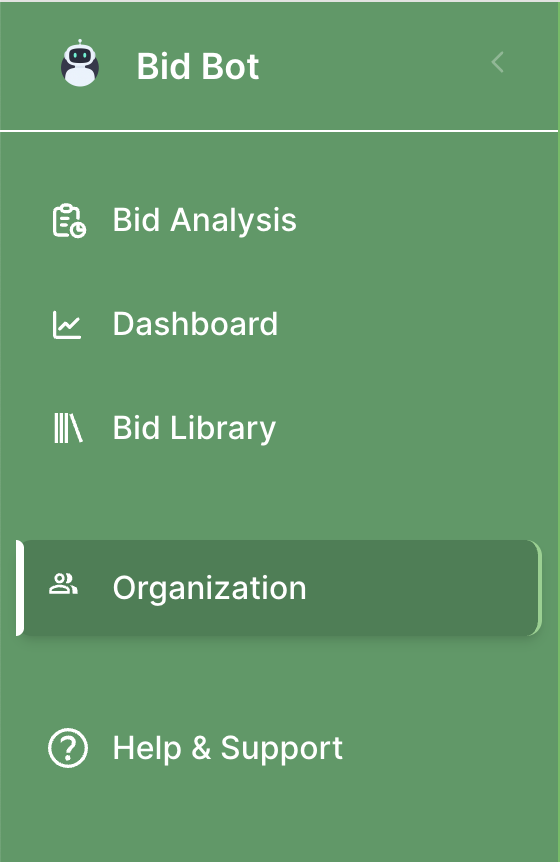
- Navigate to Organisation from the main sidebar
- View organisation management interface
- Features are only available if you’re part of an organisation
Understanding Organisations
What Are Organisations?
- Team structure: Group team members together
- Data isolation: Bids and data scoped to organisations
- Access control: Control who can access what
- Collaboration: Enable team collaboration on bids
Organisation Features
- Member management: Add and remove team members
- Organisation settings: Configure organisation details
- Access control: Manage permissions
- Bid sharing: Share bids within the organisation
Viewing Organisation Information
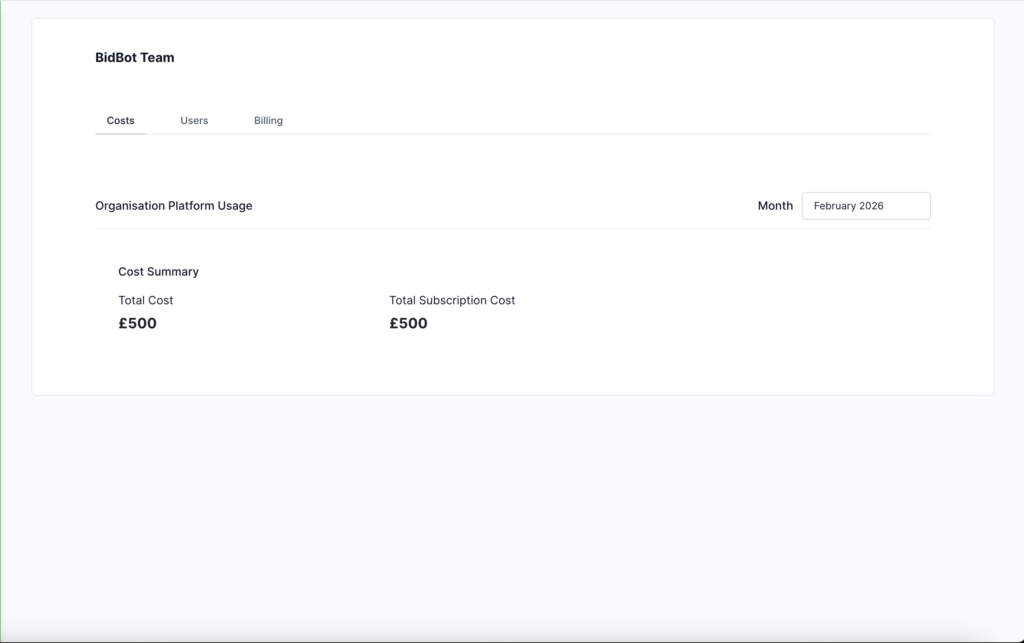
Organisation Costs
View: Costs per month
Member List
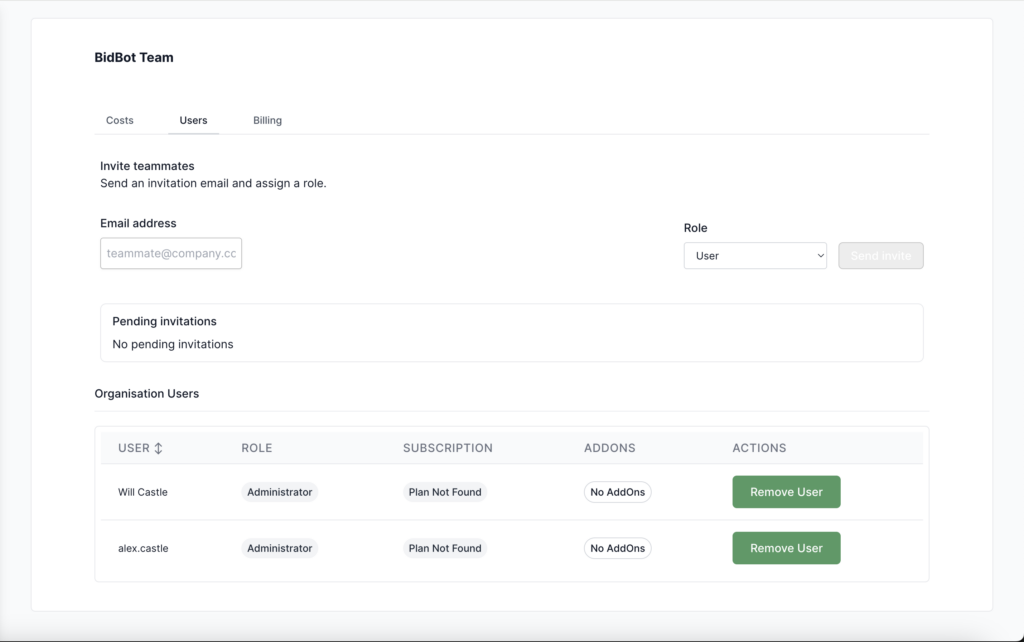
View: All users in organisation, member details and roles, member status
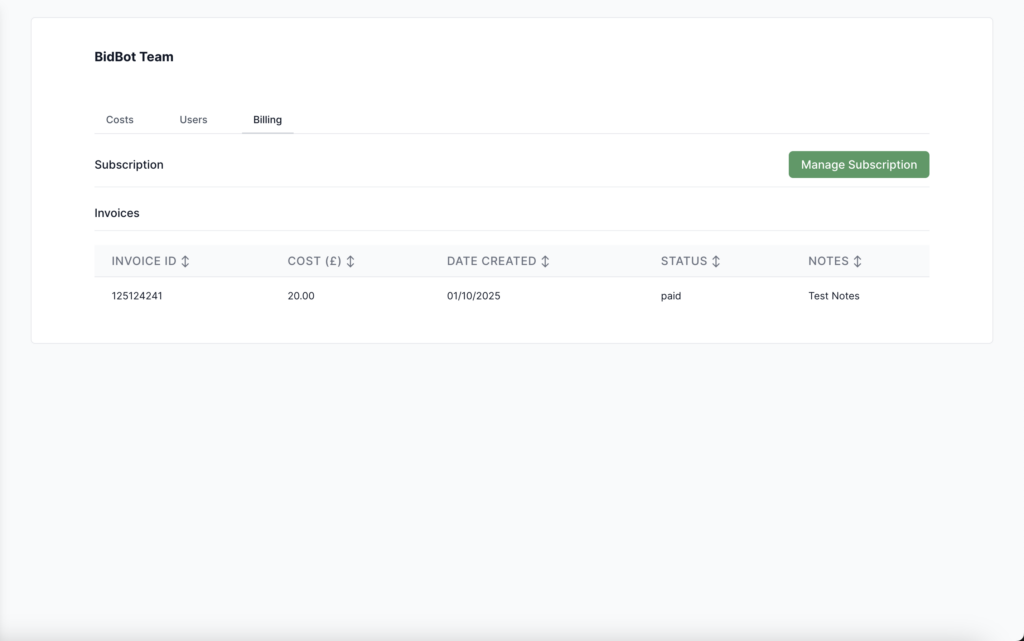
View Invoices and manage subscription
Managing Team Members
How to Add Someone
- Contact support
- Request an invitation for the person needed
- Provide email address
- The support team will send an invitation by email
- Person accepts, signs up for Bid Bot, and joins
Invitation Requirements
- Valid email address
- Not already a member
- Active organisation
Troubleshooting Invitations
- Not Received: Check spam, verify email, resend if needed, contact support
- Can’t Accept: Verify link validity, check expiration, create account if needed, contact support
Viewing Members
- View Members List on the organisation page
- See: User names, roles (if applicable), subscription, addons
Removing Members
- Find user in Members List
- Click Remove User
- Confirm
- User removed and loses access
Warning: Removes access to organisation bids and data
Working with Organisation Data
How Data Is Shared
What Data Is Shared
Organisation-Level:
- All bids created in the organisation
- Bid questions, reports, files
- Bid comments and versions
Shared Resources:
- Ingredients created/used by the organisation
- Requirements, personas, and marking schemes used by the organisation
Settings:
- Organisation information
- Member list
- Token usage
- Invoices
What Data Is NOT Shared
Personal Data:
- Personal profile
- Personal settings
- Personal bids (if created outside the organisation)
Other Organisations:
- Other organisation data is not visible
- No cross-organisation access
- Complete data isolation
How Data Sharing Works
Data Visibility
Immediate Access: When a bid is created, a file is uploaded, or a report is generated, all members see it automatically
Collaborative Access: Multiple members can work on the same bid; changes are visible in real-time
Restrictive Access: Controlled by membership, only members see data; removed members lose access immediately
Data Sharing Examples
Collaborative Bid Development: Member A creates bid → All members see → Member B/C/D/E can view/edit/upload/generate → All see changes in real-time
Shared Resources: Member A creates requirements → All members see → Member B/C use → Shared across organisation bids
After Removal: Member has access → Removed → Immediately loses access → Cannot see data → Organisation data remains
Best Practices
Member Management
- Periodically review the member list
- Remove inactive users
- Only invite authorised users
- Monitor access
Troubleshooting
- Can’t Access: Verify membership, check permissions, contact support
- Can’t Invite: Check permissions, verify a valid email, check if already a member, retry
- Invitations Not Working: Verify email sent, check spam, resend, contact support if it persists
- Can’t Remove Users: Check permissions, verify user in organisation, retry, contact support if fails
- Organisation Not Showing: Verify membership, refresh, contact support
- Can’t Edit: Check permissions, ensure admin, retry, contact support if fails

