
Getting Started with Bid Bot
Overview
Welcome to Bid Bot! This guide helps new users get started. Learn about the guided tour, creating your first bid, understanding the interface, and achieving quick wins.
Prerequisites
- Bid Bot account
- Access to bid documents or information
- Web browser (Chrome, Firefox, Safari, or Edge recommended)
Your First Login
Welcome Experience
When you first log in:
- Brief account setup
- Automatic guided tour
- Interface introduction
- Support and help options are visible
Taking the Guided Tour
The Welcome Tour:
- Automatic start on first login
- Step-by-step interactive exploration
- Skippable anytime
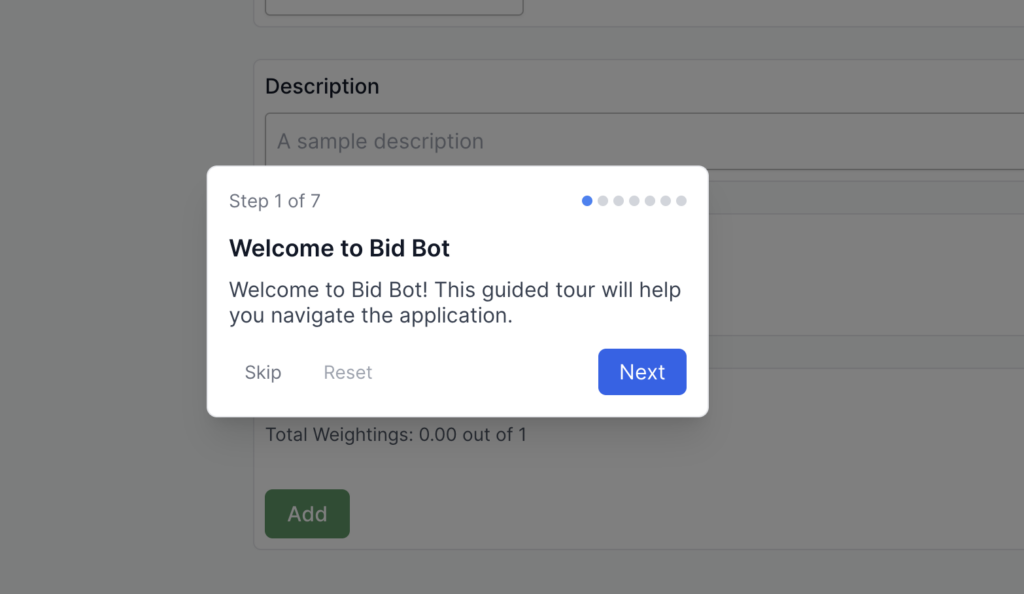
Tour Highlights: Navigation sidebar, Bid Analysis, Dashboard, Bid Library, Help & Support, Profile, Report Page
Understanding the Interface
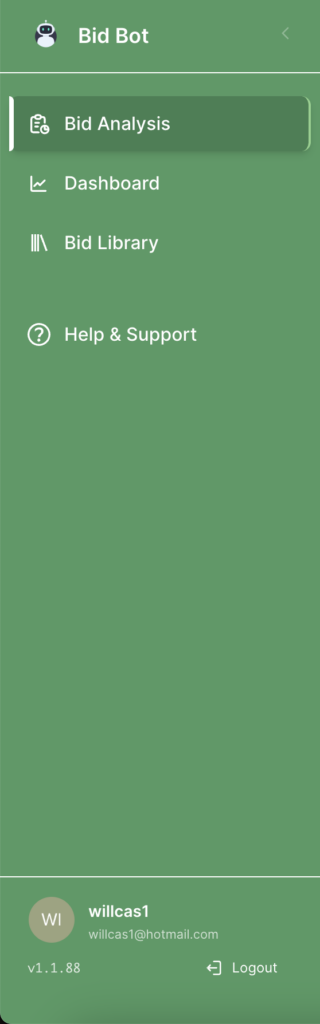
Navigation Sidebar
- Analysis: Bid Analysis, Dashboard, Bid Library
- Organisation: Manage your organisation (if applicable)
- Support: Help & Support guides
- Profile: Account and subscription
Key Pages
- Bid Analysis: Create new bids and run analysis
- Bid Library: browse, organise, and manage all your bids in one place. Quickly access bid details, track progress, and maintain a structured overview of your bids.
- Bid: view and manage the details of a specific bid. Edit information, track status, and collaborate with your team on bid-related tasks.
- Bid Question: access and manage individual bid questions. Review, edit, or respond to questions to ensure each bid submission is complete and accurate.
- Report: view or generate analysis reports for your bid questions. You can also update your question and answer directly from this section to keep your data accurate and current.
- Bid Question: access and manage individual bid questions. Review, edit, or respond to questions to ensure each bid submission is complete and accurate.
- Bid: view and manage the details of a specific bid. Edit information, track status, and collaborate with your team on bid-related tasks.
- Dashboard: View analytics and bid performance
- Profile: Manage account and view usage
Creating Your First Bid
Quick Start Approach
Recommended:
- Start simple
- Start with a fake bid of 2-3 questions
- Enable ingredients reports only
- Use the first bid as a learning experience
Step-by-Step: Your First Bid
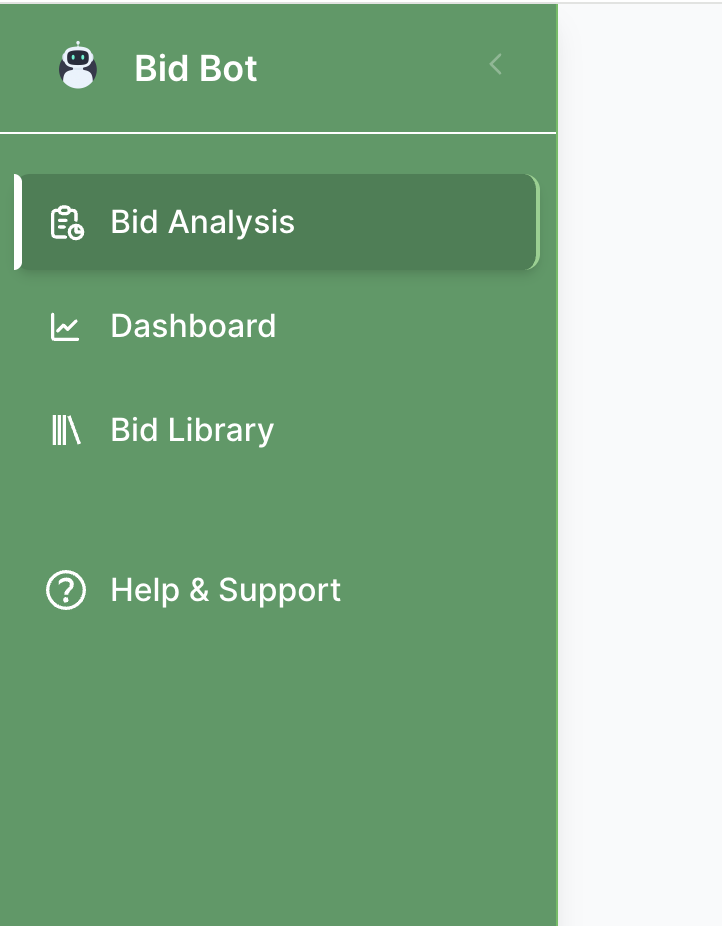
Step 1: Navigate
- Click Bid Analysis in the sidebar
- Choose the Manual tab
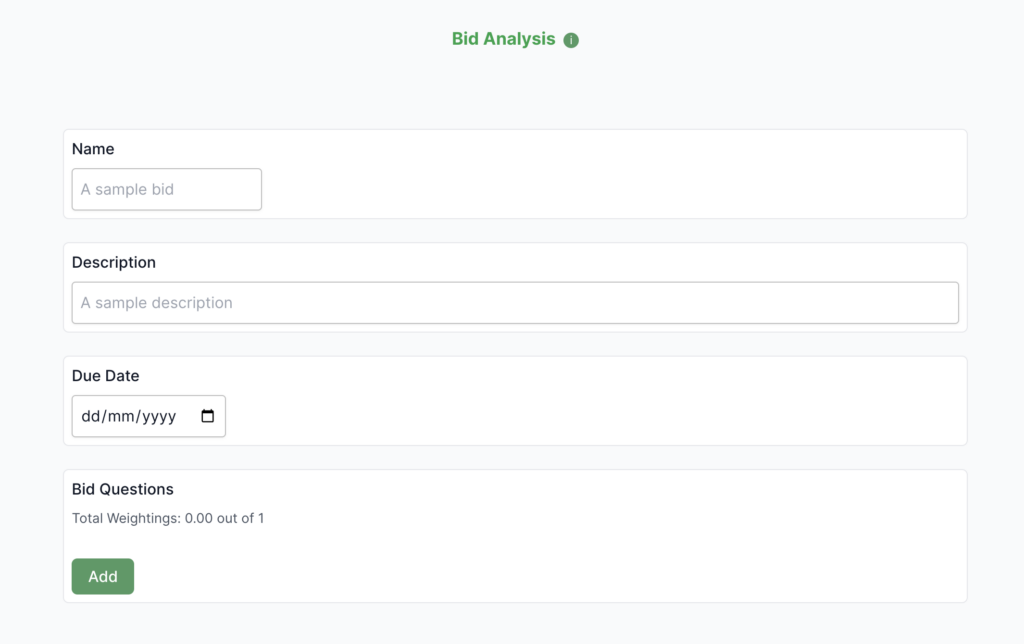
Step 2: Add Information
- Bid Name: Descriptive name (e.g., “My First Bid”)
- Description: Brief description (e.g., “My test description”)
- Due Date: Due date (e.g. 04/11/2025)
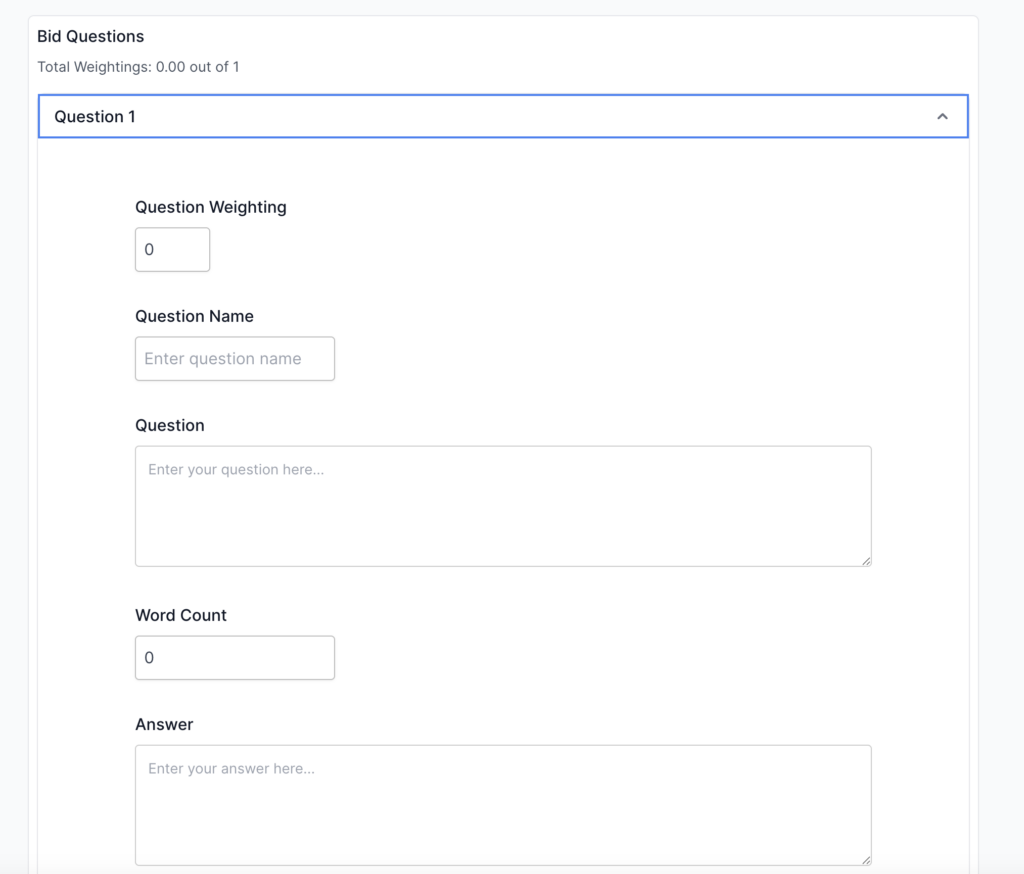
Step 3: Add First Question
- Click Add Question
- Enter:
- Question Name: Short identifier (e.g., “Q1 – Approach”)
- Question Text: Question from RFP
- Answer Text: Your response (draft is fine)
- Question Weighting: 1.0 if one question, equal if multiple
- Add 1-2 more questions if available
Step 4: Choose Analysis
- Select ingredients
- Skip advanced options for now
- Save bid option
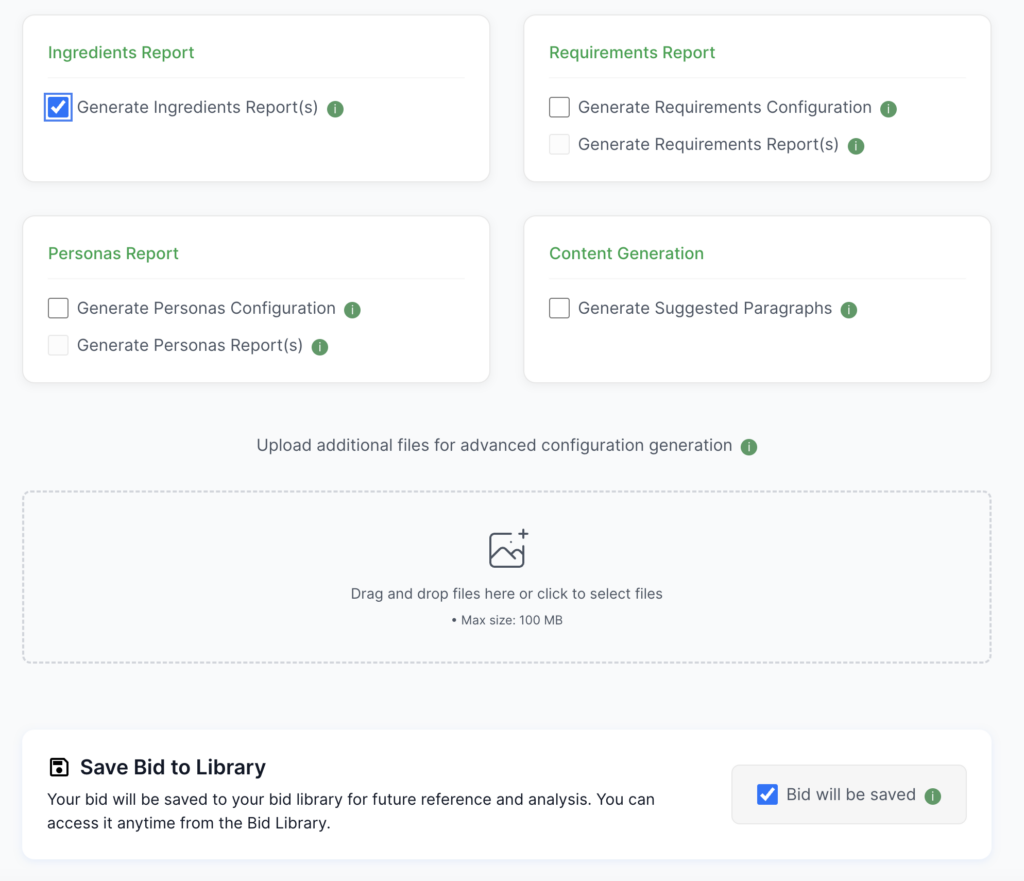
Step 5: Create
- Click Create Bid Folder
- Wait for analysis
- Taken to a new bid when ready
Step 6: Explore
- View generated reports
- Check scores
- Learn from analysis
- Create a new bid with requirements, personas, and suggested paragraphs turned and see how that affects the scores and suggestions you get
- Export the bid into different formats: PDF, CSV, and Word and see what insights you get from it
- Create a bid with fake spec files to simulate a real bid
- Talk to the AI Bidding Assistant to help you with your drafts
Quick Wins for New Users
Week 1
✅ Complete welcome tour
✅ Create first test bid
✅ Explore reports
✅ Review scores
Week 2
✅ Create a real bid
✅ Use tags
✅ Set statuses
✅ Compare different bid question versions with CSV exports and see how you have improved over time
✅ Review dashboard
Common First-Time Tasks
- Test Bid: Learn interface without pressure
- Explore Reports: Understand what reports tell you
- Organise Bids: Add tags, set statuses, use search/filter
- Export: Try CSV (Spreadsheet) export, review the exported file
Understanding Your First Reports
What Reports Show
- Ingredients: Incorporate best practices for bids, ensuring clarity, compliance, and strategic positioning. Each section should demonstrate a clear understanding of client needs and deliver persuasive, evidence-backed responses.
- Requirements: Ensure full alignment with the specification and evaluation criteria. Address every requirement explicitly, leaving no ambiguity in how your proposal meets or exceeds expectations.
- Personas: Build stakeholder alignment throughout the bid. Tailor messaging to resonate with decision-makers, specialists and end users, showing how the solution creates value for each.
- Marking Scheme: The submission should be reviewed against the defined evaluation framework, assessing how effectively the bid meets criteria such as quality, innovation, and compliance.
Understanding Scores
Ranges:
- 80-100%: Excellent
- 60-79%: Good, minor improvements needed
- 40-59%: Adequate, improvements recommended
- 0-39%: Weak, significant improvements needed
Focus: Address lowest scores first, fill gaps, focus high-weight questions, target quick wins
Getting Help
- Within Bid Bot: Chat feature, Help & Support, tooltips, tour
- External: Knowledge Base guides, support@bid-bot.co.uk
- When to Ask: Stuck on task, feature not working, need guidance, account issues, technical problems
Troubleshooting
- Can’t See Tour: Check browser support, clear cache, verify settings, contact support
- Creation Issues: Check required fields, verify validation, try simpler, check connection, ran out of tokens
- Don’t Understand Reports: Read guides, start simple, use chat, review examples, be patient
- Navigation Confusion: Use the tour, explore gradually, check the guides, and ask for assistance
Best Practices
- Start Simple: Begin basic, add features, practice, learn gradually, and build confidence
- Use Resources: Complete tour, read guides, use chat, check tooltips, contact support
- Learn from Experience: Experiment, review results, iterate, track progress, ask questions

