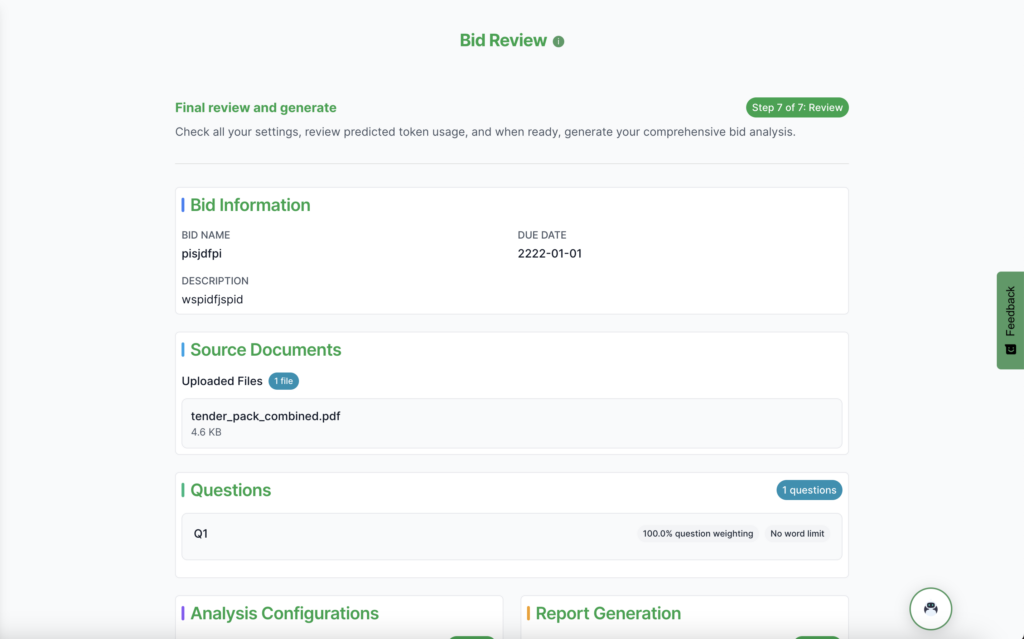
Bid review (Set-up) – how to set-up your bid
Bid Review – How to set up your bid
This guide explains how to create a bid and run Bid Bot’s Bid Review capability.
Bid Documents (Step 1)
-
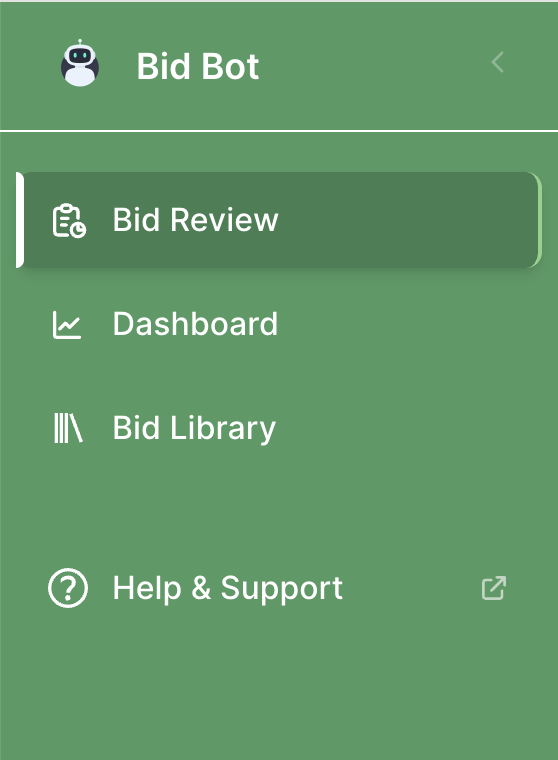
Open the sidebar.
-
Click Bid Review.
-
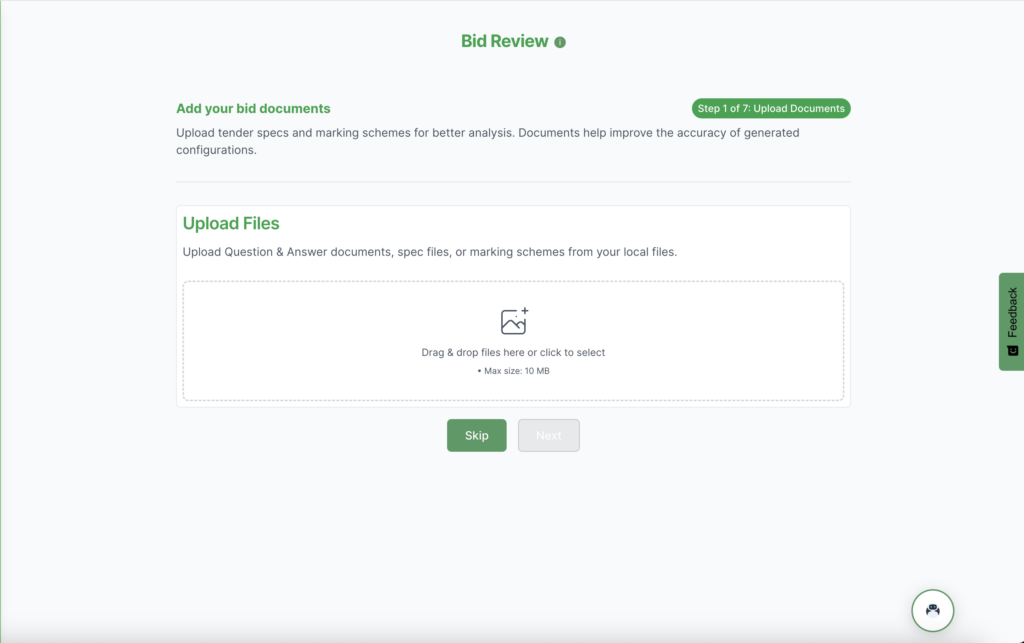
On the first page, upload your bid documents.
-
Once the upload is complete, click Next.
 .
. 
Bid Details (Step 2)
Basic Information & Bid Question
Complete the following fields to define your bid:
-
Name
Enter a clear, descriptive title so you can easily identify the bid later. -
Description
Provide a short, high-level summary of the bid. -
Due Date
Select the submission deadline using the calendar.
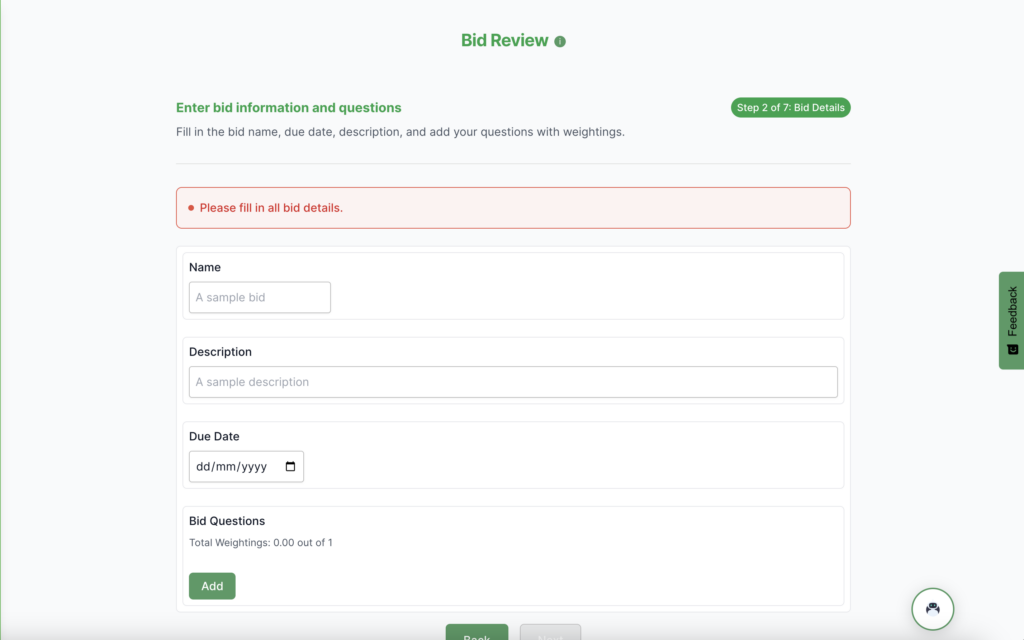
Bid Questions
Add each question you intend to answer as part of this bid.
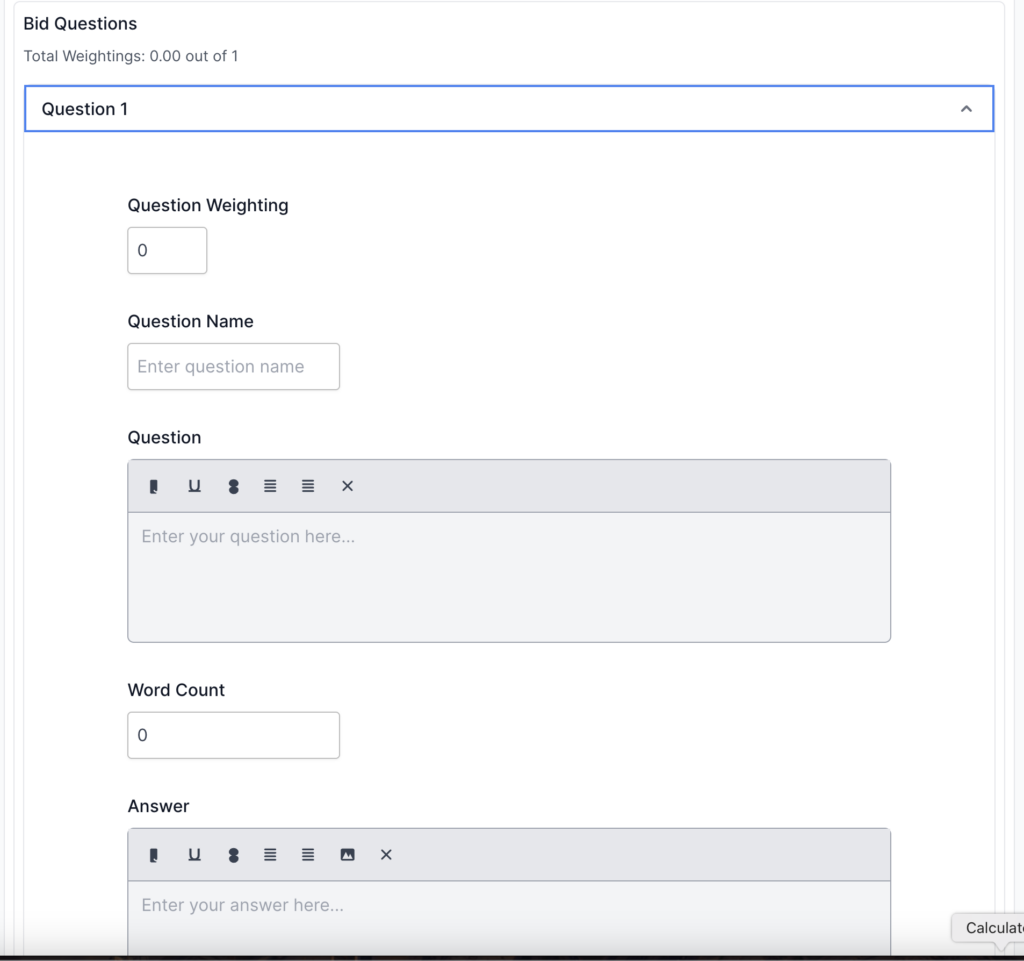
For each question, complete the following:
-
Question Weighting
Assign a relative importance to the question compared to others in the bid. -
Question Name
Enter a short reference name for the question. -
Question
Paste or type the full question text. -
Word Count
Specify the target or current word count for the response. -
Answer
If you are reviewing a draft or a previous submission, enter the existing response here.
Repeat this process until all bid questions have been added.
Review Options (Step 3)
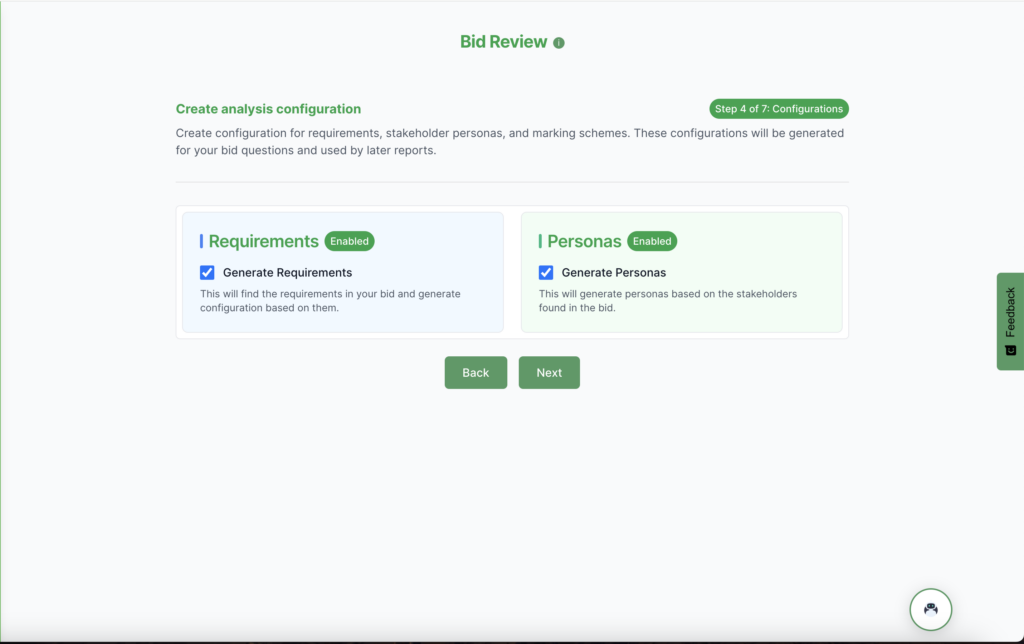
Select the following options as required:
-
Generate Requirements Configuration
-
Generate Personas Configuration
When selected, the platform will automatically configure requirements and personas for each question. This ensures the bid is correctly set up to be analysed.
Report Selection (Step 4)
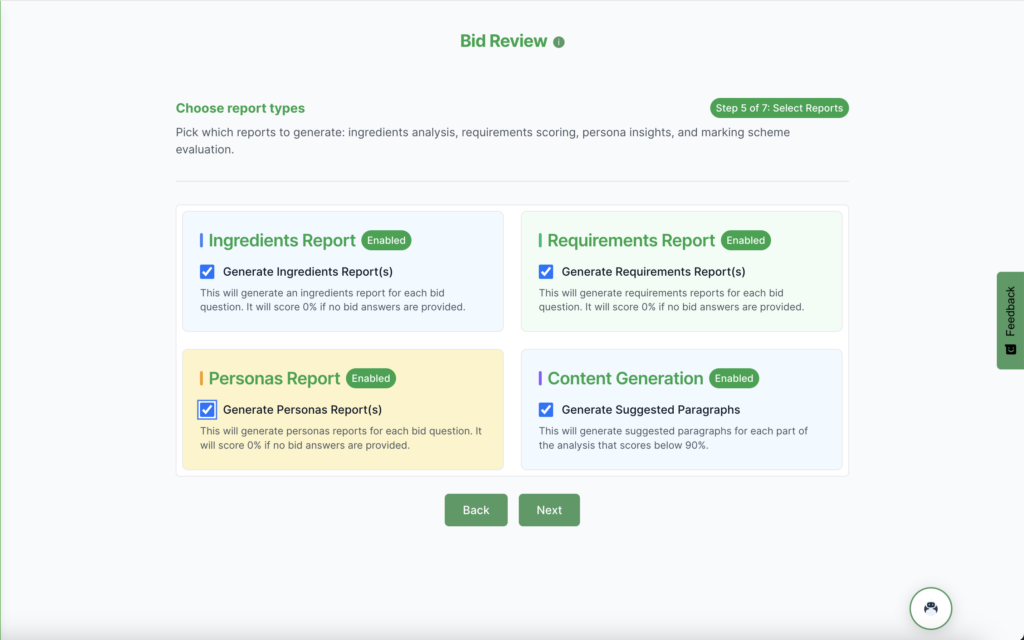
Choose the reports you want to run as part of the bid review process:
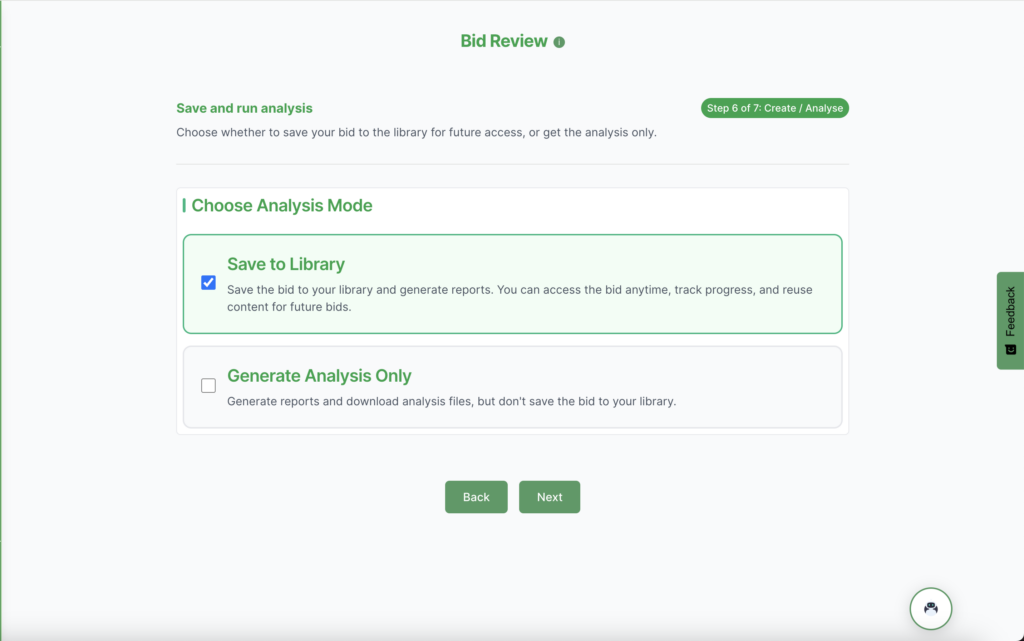
Save to Bid Library (Step 5)
-
Save to bid library (Save enabled):
Tick this option to store the bid data in the Bid Library for future reviews or content reuse. -
Generate Analysis Only (Save disabled):
Tick this option to run reports without saving. In this case, the system will generate downloadable files containing the bid review data.
Review (Step 6)
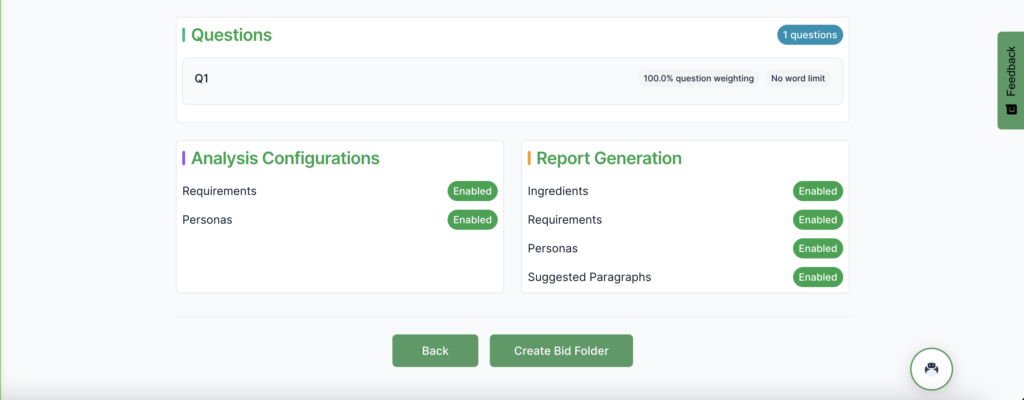
On the final step, you will see a summary of all the information entered and options selected. Review the details carefully before proceeding.