
Bid Review
The Bid Review page guides you through a 6-step process to create and analysis your bid:
- Upload your bid documents
- Enter bid details and questions
- Configure analysis options
- Generate comprehensive reports
- Save your bid to your library or just generate the reports
- Review
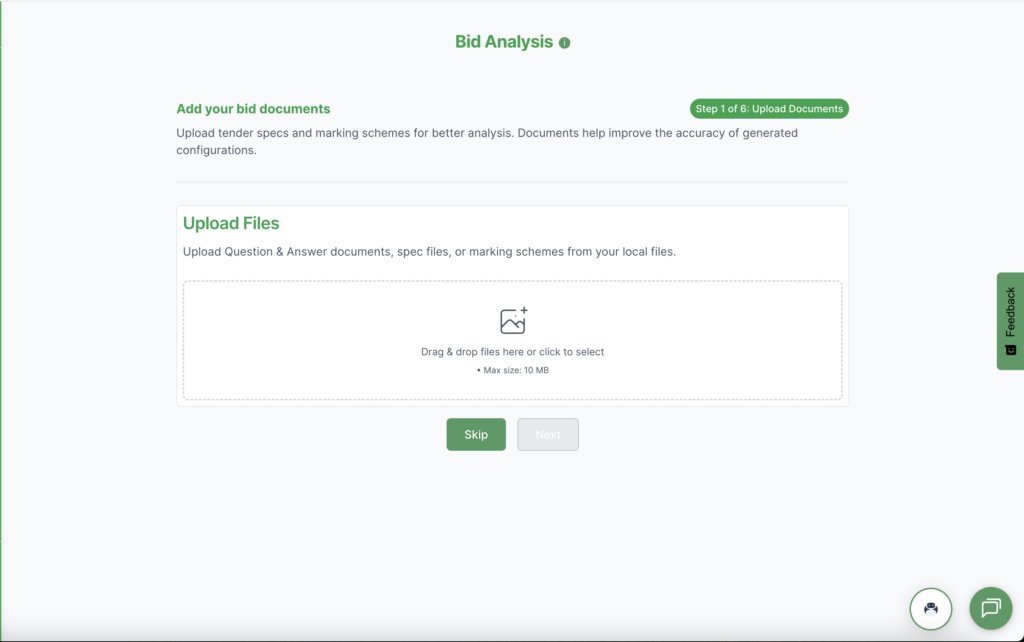
Step 1: Upload Documents
Upload your bid documents, including:
- Question and answer documents** – These can be used to auto-fill the bid form
- Tender specifications** – Help improve analysis accuracy
- Marking schemes** – Provide evaluation criteria for better configuration
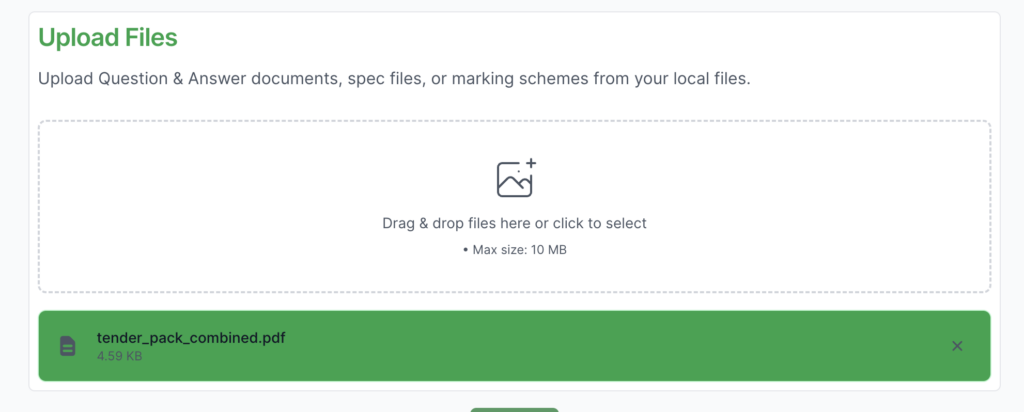
Drag and drop files or click to browse (up to 10 files total). You can skip this step, but uploading documents significantly improves analysis quality. Documents help the system understand your bid requirements and generate more accurate configurations. Supported file formats include PDF, Word documents, and text files.
Click “Next” to proceed to Bid Details, or “Skip” if you don’t have documents ready.
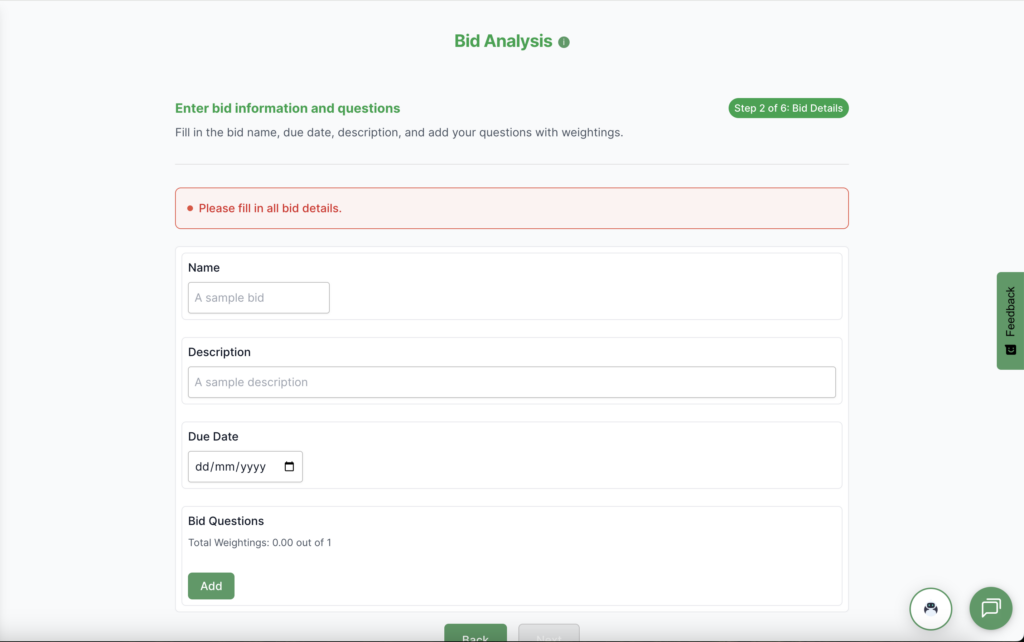
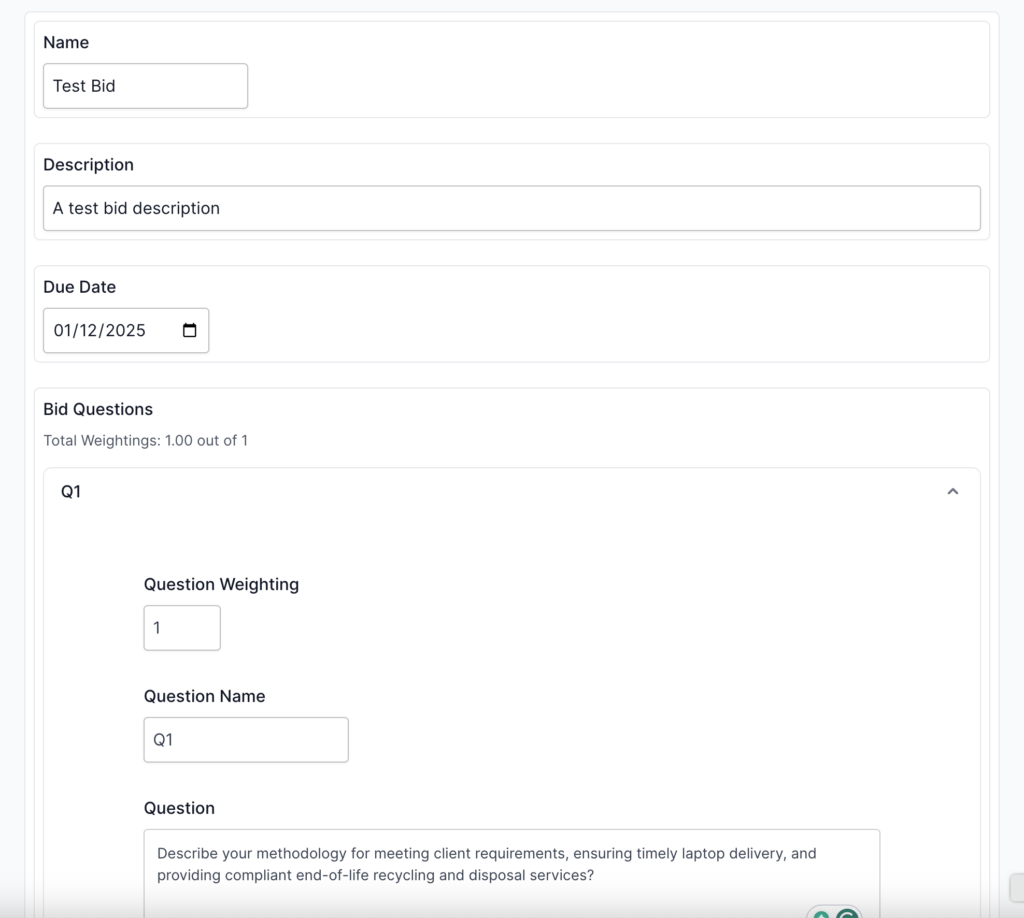
Step 2: Bid Details
Enter the essential information about your bid:
- Bid Name – Give your bid a clear, descriptive name
- Due Date – Set the submission deadline
- Description – Provide a brief overview of the bid
- Bid Questions – Add each question from the tender:
- Question Name – A short identifier for the question
- Question Text – The full question text
- Answer – Your response (optional at this stage)
- Weighting – The importance/weight of this question (should total 1.0 across all questions)
- Word Count – Target word count if specified
Managing Questions:
- Click “Add Question” to add more bid questions
- Use the remove button (×) to delete questions
- Ensure question weightings add up to 1.0 for accurate scoring
Click “Next” to proceed to Configurations.
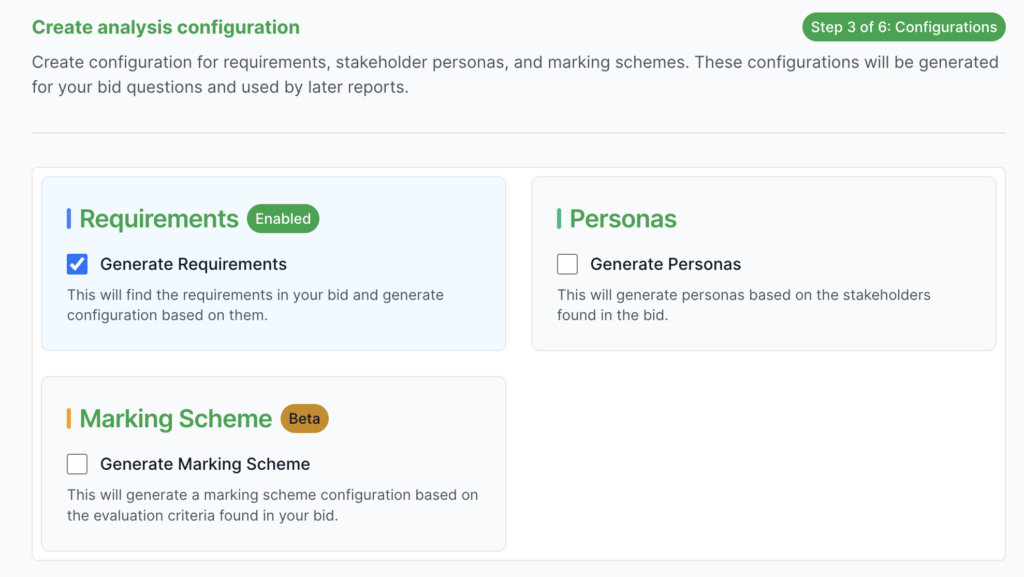
Step 3: Configurations
Choose what types of analysis configurations you want to generate. These configurations will be used by the reports in the next step.
Available Configurations:
- Requirements
- Finds requirements in your bid documents
- Generates a configuration based on identified requirements
- Used by Requirements Reports to score your answers
- Personas
- Identifies stakeholders mentioned in your bid
- Generates persona profiles based on stakeholders
- Used by Personas Reports to evaluate stakeholder alignment
- Marking Scheme
- Analyse the evaluation criteria from your bid documents
- Generates the marking scheme configuration
- Used by Marking Scheme Reports to assess answer quality
Each configuration improves the accuracy of Bid Bots’ overall analysis
Click “Next” to proceed to Select Reports, or “Skip” to move forward without configurations.
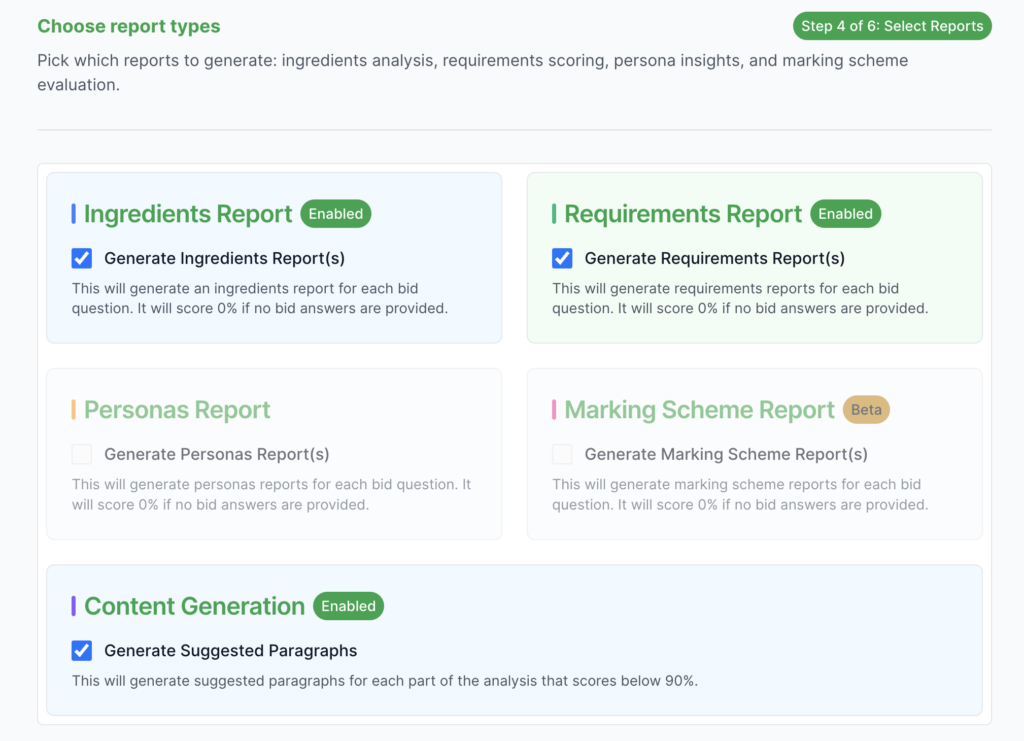
Step 4: Select Reports
Choose which reports you want to generate for your bid analysis. Reports provide detailed insights and scoring for each bid question.
Available Reports:
- Ingredients Report
- Analyses the key components and “ingredients” needed for each question
- Helps identify what should be included in your answers
- Requirements Report
- Scores how well your answers address the identified requirements
- Requires “Requirements” configuration from Step 4
- Personas Report
- Evaluates how well your answers align with stakeholder personas
- Requires “Personas” configuration from Step 4
- 4. Marking Scheme Report
- Assess your answers against the marking scheme criteria
- Requires “Marking Scheme” configuration from Step 4
- 5. Suggested Paragraphs
- Generates suggested content for parts of the analysis scoring below 90%
- Only available if you’ve selected at least one report type
- Helps improve your answers with AI-generated suggestions
Notes:
- Reports will score 0% if no bid answers are provided
- Select the reports most relevant to your needs
- Reports that require configurations will only be available if you enabled them in Step 4
Click “Next” to proceed to Create/Analyse (for paid users) or Review.
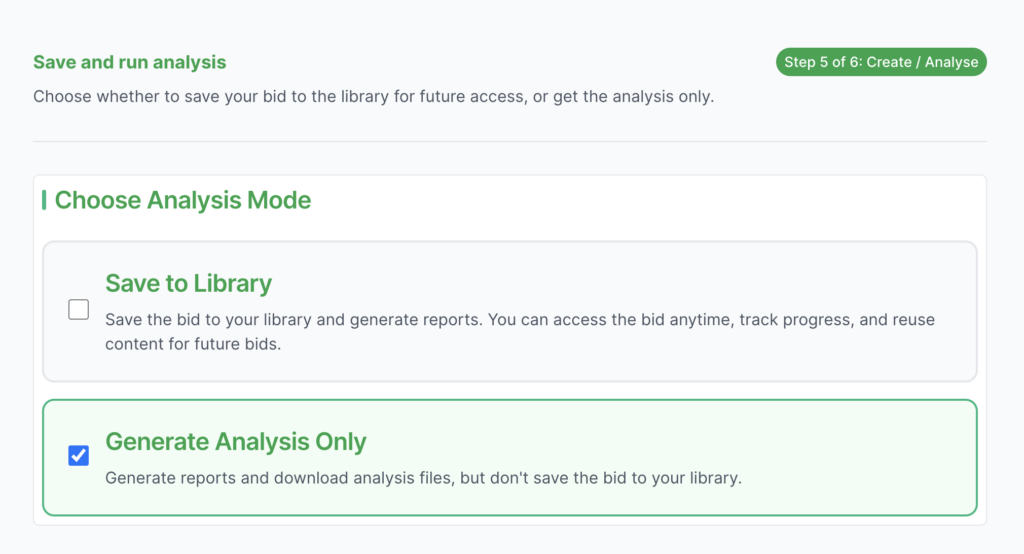
Step 5: Create / Analyse (Paid Users Only)
Decide whether to save your bid to your library or just generate an analysis file.
Options:
- Save to Library (Recommended)
- Saves the bid to your Bid Library for future access
- Allows you to track progress and reuse content
- Enables collaboration and ongoing management
- Analysis Only
- Generates reports and downloads analysis files
- Does not save the bid to your library
- Data is removed after analysis completes
- Useful for quick, one-time analyses
Click “Next” to proceed to Review.
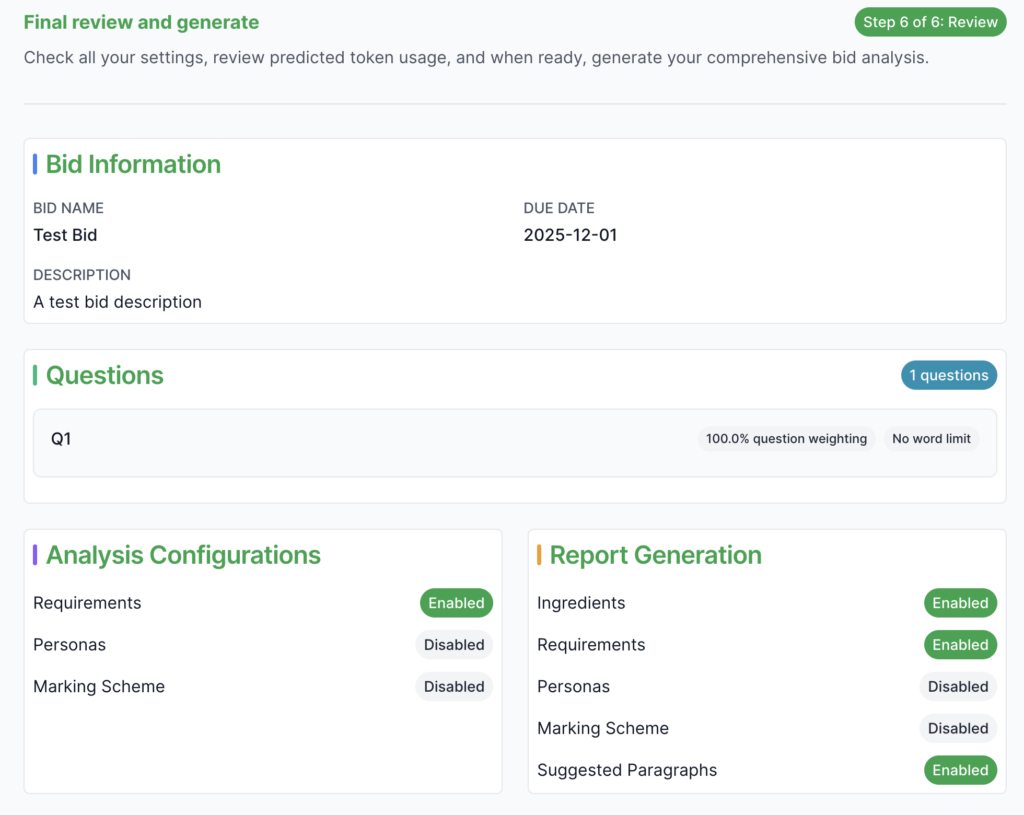
Step 6: Review
Review all your settings and configurations before generating the analysis.
Review Checklist:
- Bid details (name, due date, description)
- Bid questions and weightings
- Selected configurations (Requirements, Personas, Marking Scheme)
- Selected reports (Ingredients, Requirements, Personas, Marking Scheme, Suggested Paragraphs)
- Save preference (if paid user)
- Predicted token usage
Token Usage:
- The system shows predicted token usage based on your selections
- Token usage depends on:
- Number of bid questions
- Selected report types
- Whether suggested paragraphs are enabled
Processing Time:
- Configuration and report generation can take several minutes
- Complex analyses with multiple reports may take longer
- A warning will appear if processing is expected to take significant time
Generate Analysis:
– Click the primary button to start, which will be “Create Bid Folder” If saving to the Bid Library or “Generate Analysis” If analysis only.


What Happens Next:
– If saving to library: You’ll be redirected to the bid in your Bid Library
– If analysis only: Files will be downloaded and the page will reset
Notes
Now, when you enter details into the bid analysis page, information is stored for the session so if you leave the page for whatever reason the information is reloaded when you visit it again (apart from the files which need reuploading)
Troubleshooting
No Files Warning:
- You’ll see a warning if you proceed without uploading documents
- Analysis will still work, but may be less accurate
- You can continue anyway or go back to upload files
File Limit Reached:
- Maximum 10 files total (uploads + SharePoint)
- Remove some files or use SharePoint for additional files
Token Usage:
- Check your remaining tokens before starting
- Predicted usage is shown in the Review step
- Contact support if you need more tokens
Processing Time:
- Complex analyses take longer – be patient
- Don’t close the browser during processing
- You’ll be notified when the analysis completes

