
Creating and Managing Marking Schemes
Overview
Marking schemes define the criteria used to evaluate bids. This guide explains how to create, edit, and manage marking scheme rules, and how to use them when analysing your bids.
What Are Marking Schemes?
Sets of criteria for scoring bids:
- Categories: Groups of related criteria (e.g., “Technical Approach”, “Project Management”)
- Criteria: Specific items evaluated (e.g., “Methodology”, “Risk Management”)
- Scoring Scale: How scores are assigned (e.g., 0-100, pass/fail)
- Weightings: Importance of different criteria
Understanding Marking Schemes
What They Do
Help you understand evaluation, focus efforts, improve scores, and track performance
When to Use Them
Use when you have client evaluation criteria, want to self-score, need to understand what evaluators look for, or want to improve against specific criteria
When to Create Your Own Rules
Create your own when:
- The client provides particular evaluation criteria
- Working with standard evaluation methods (e.g., public sector tenders)
- You know the successful criteria from past bids
- Client specifies exact scoring scales
- Your organisation has standard evaluation criteria
Use automatic generation when:
- No specific criteria provided
- Need a starting point
- Exploratory analysis
- Time constraints
Best Practice: Even with automatic generation, review and customise to match your needs and client requirements
Accessing Marking Schemes
From Report Page:
- Go to Bid Library
- Open a bid and click on a question
- Go to the Report page
- Find the Marking Scheme section and click on the eye icon to view/edit the report

From Bid Creation: Enable marking scheme analysis, select rule, reports generated during analysis
Creating a New Marking Scheme
Deciding How to Create
Before creating, consider:
- Client evaluation criteria → Create manually to match exactly
- Specific scoring requirements → Create manually with custom scales
- Need starting point → Use automatic generation, then customise
- Want consistency → Create manually to standardise
Step 1: Open Create Dialogue
- On the Report page, find the Marking Scheme section
- Click Create
- Popup opens
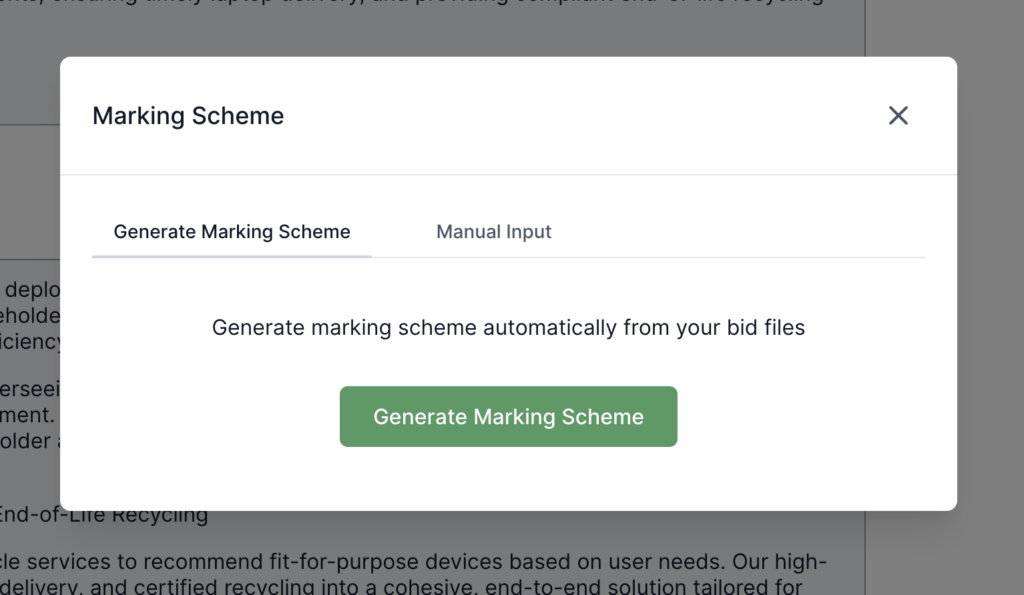
Step 2: Choose Creation Method
Automatic Generation
- Click Generate tab
- Bid Bot generates based on the question, answer, and files (if uploaded)
- Review the generated marking scheme
- Edit and customise to match your needs
- Refine categories and criteria
When to Use: Need a starting point or don’t have specific criteria
Important: Always review and customise automatically generated schemes
Manual Entry
- Click the Manual tab
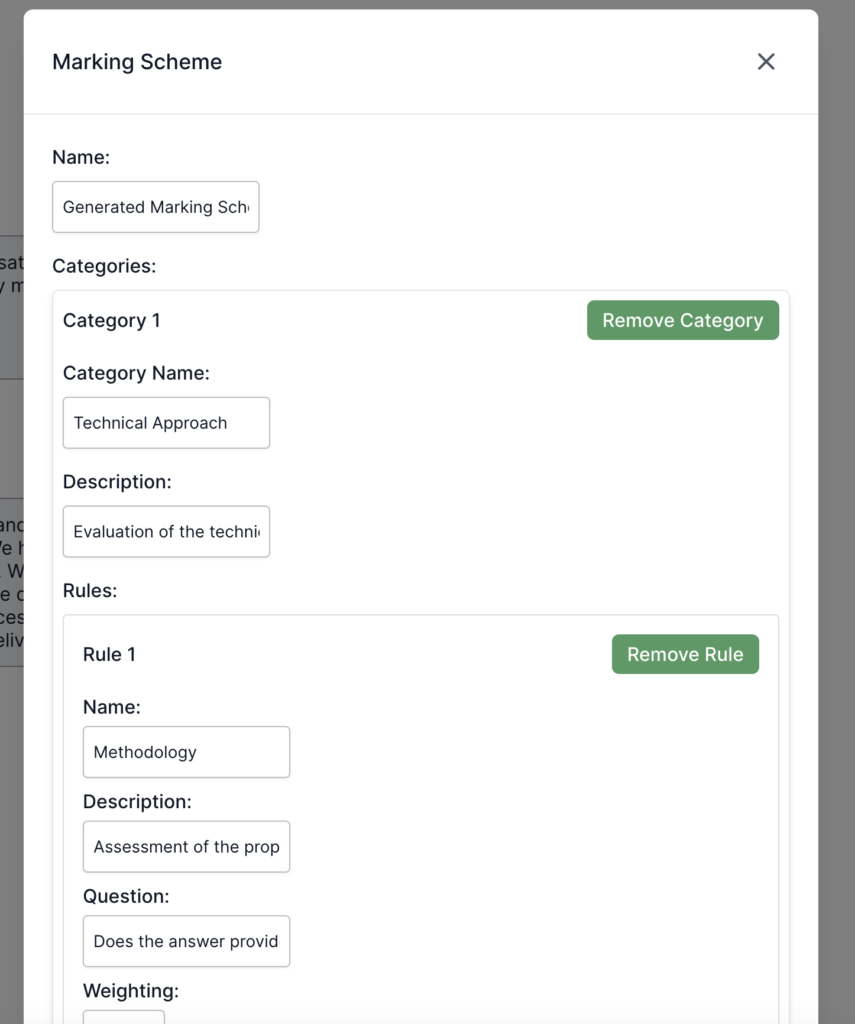
- Enter: Name, categories, criteria (rules), scoring scale
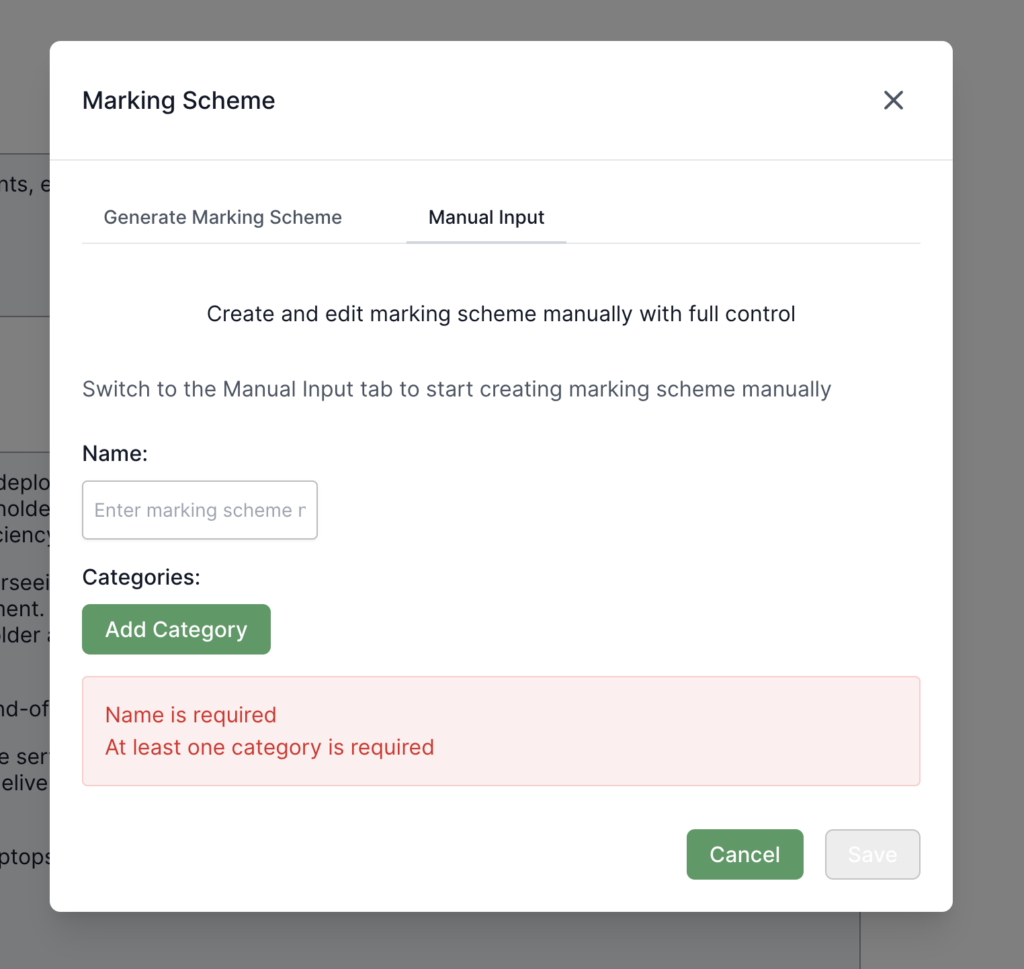
When to Use: Specific client criteria, exact match needed, organisation standards, historical success data
Step 3: Define Your Marking Scheme
For Manual Entry
Name: Enter descriptive name (e.g., “Project X Marking Scheme”)
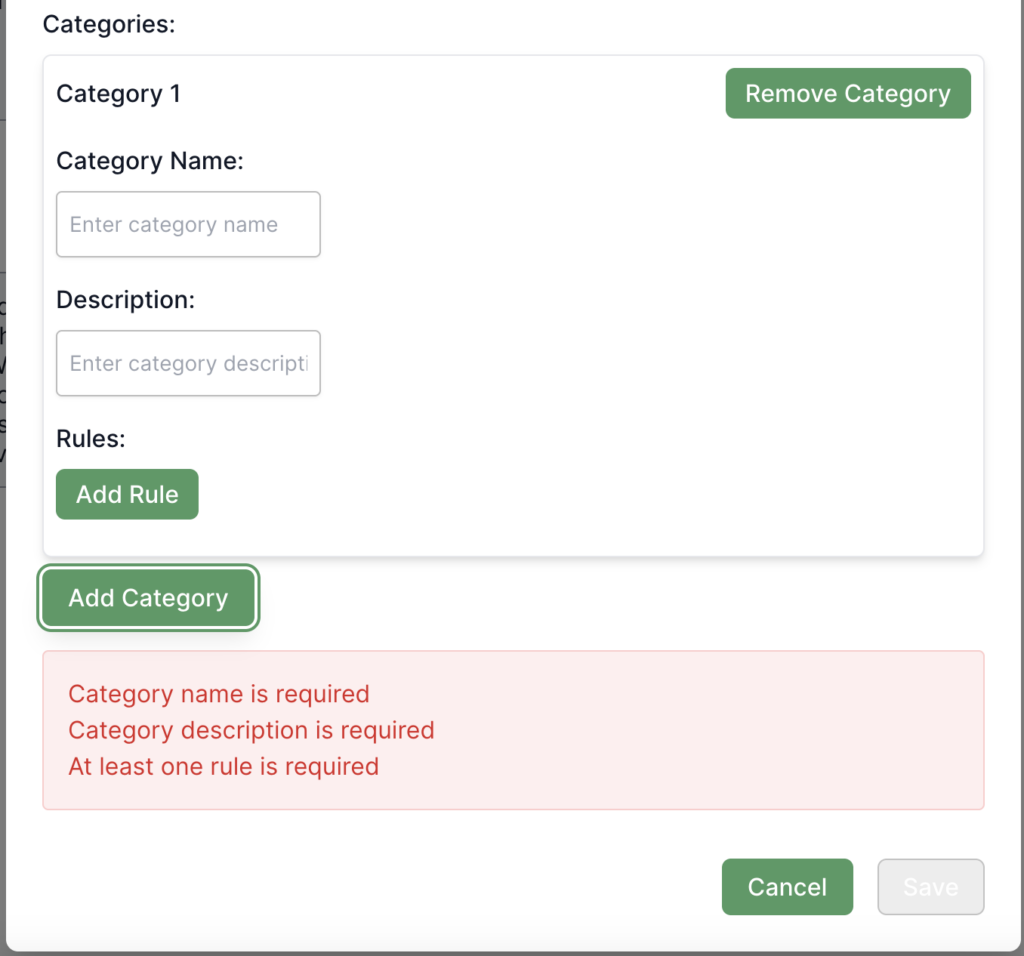
Categories:
- Click Add Category
- Enter category name and description (optional)
- Add multiple as needed
- Remove using the Remove button
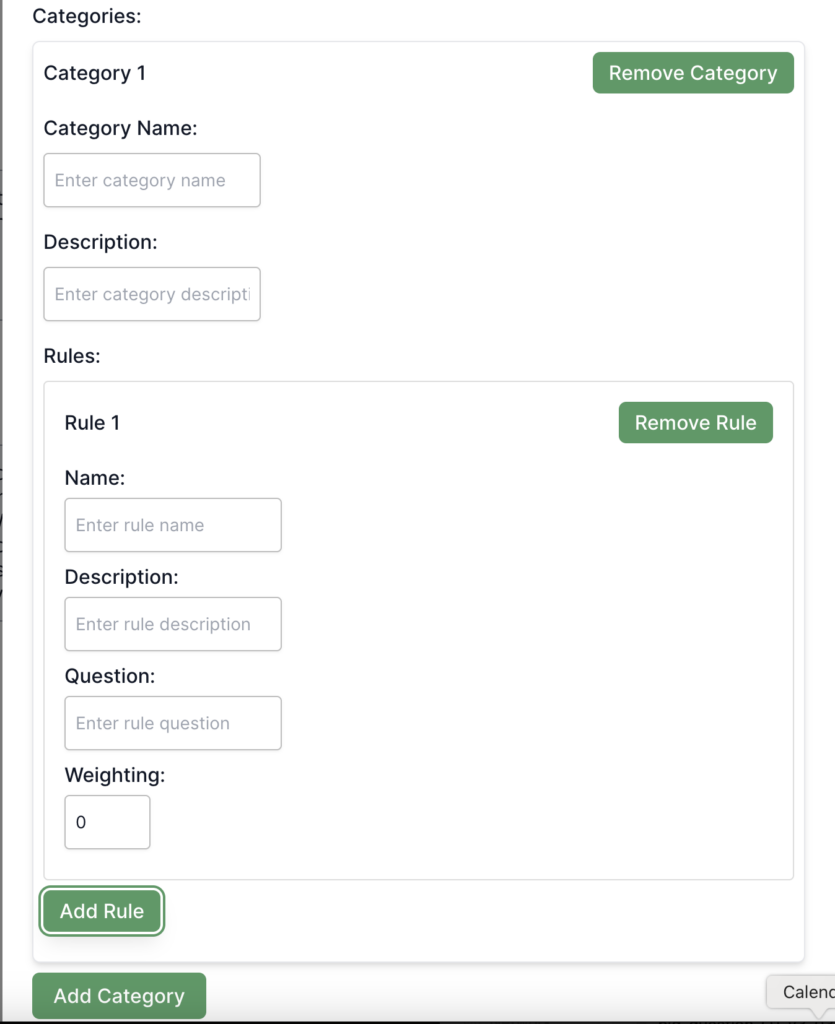
Criteria (Rules):
- Expand category
- Click Add Rule
- Enter:
- Question: What does this evaluate (e.g., “Does the answer demonstrate a clear project management methodology?”)
- Weighting: Importance (0-100 or 0-1)
- Category: Auto-filled
- Add multiple per category
- Remove using the Remove button
Important: Ensure rule weightings sum appropriately (may need to sum to 100 or 1.0)
For Automatic Generation
Reviewing Generated Scheme:
- Review generated categories, criteria/rules, scoring scales
- Customise: Edit names/descriptions, add/remove categories/rules, edit questions/weightings, adjust scoring scale
- Switch to Manual for extensive changes
Rules
What Are Rules?: Specific evaluation items. Each asks a question about your bid content and is scored individually.
When to Add:
- Client-specific criteria
- Important aspects
- Missing coverage
- Custom requirements
How to Add:
- Click Add Rule within the category
- Enter question, weighting, category
- Add multiple per category
- Remove using Remove
Best Practices: Be specific, match client criteria, set appropriate weightings, cover key areas, avoid redundancy, use clear language
Scoring Scale (Optional):
- Click Add Scale
- Enter description (e.g., “Excellent”, “Good”, “Satisfactory”, “Poor”) and score/range
- Examples:
- Excellent: 90-100
- Good: 70-89
- Satisfactory: 50-69
- Poor: Below 50
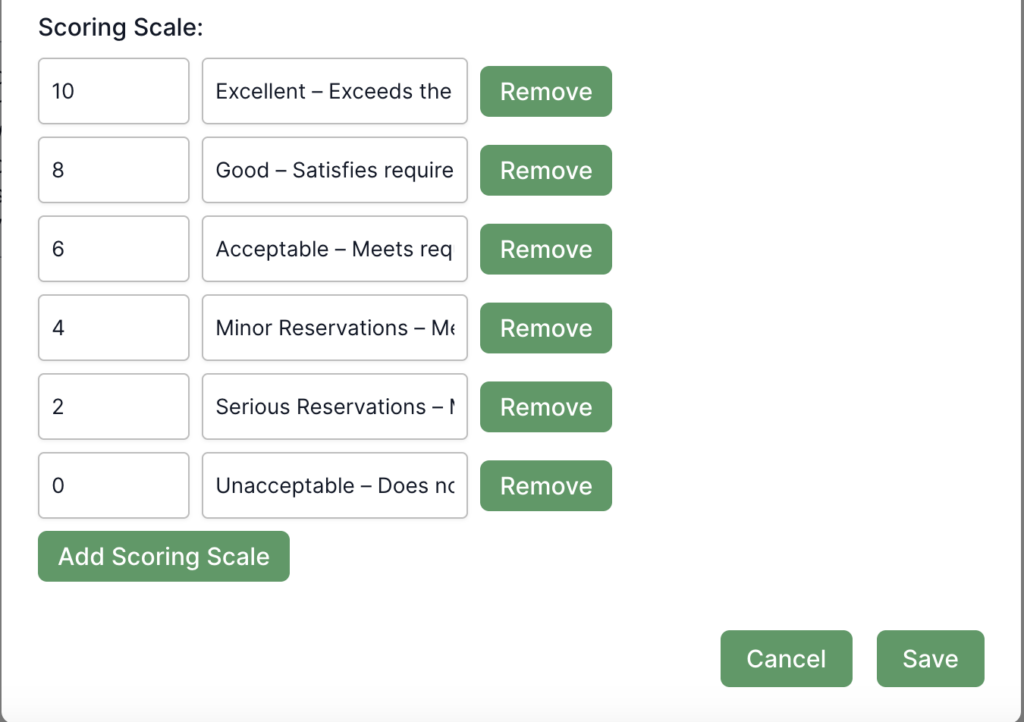
- Remove using Remove if needed
Note: Scoring scale optional – you can use numerical scores only
Step 4: Save
- Review all entries
- Verify the weightings sum correctly
- Check completeness
- Click Save
- Select from the dropdown when generating reports
Editing Existing Marking Schemes
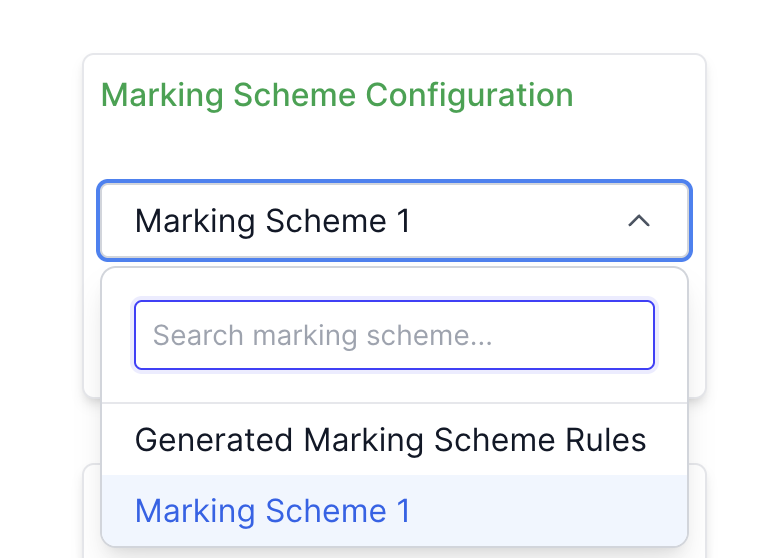
- On the Report page, find the Marking Scheme dropdown
- Select scheme
- Click Edit
- Make changes: Name, categories, criteria, scoring scale
- Click Save
Using Marking Schemes
Selecting
- On the Report page, find the Marking Scheme dropdown
- Select scheme
- Linked to your bid
Generating Reports
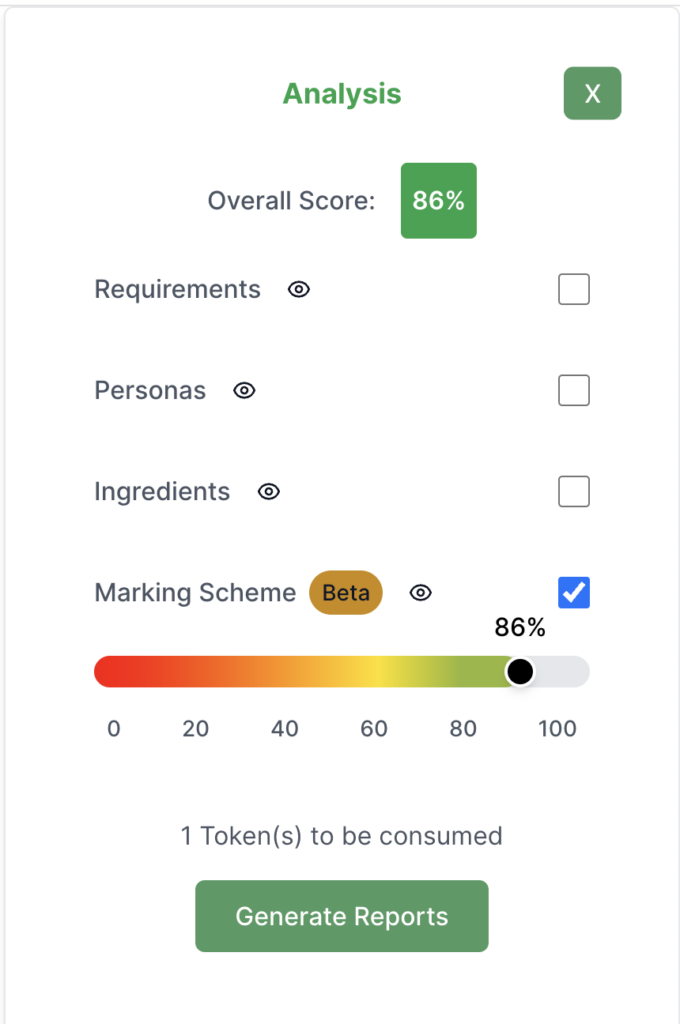
- Ensure the marking scheme is selected
- Enable Marking Scheme in report options
- Click Generate Report
- View scores against criteria
Understanding Reports
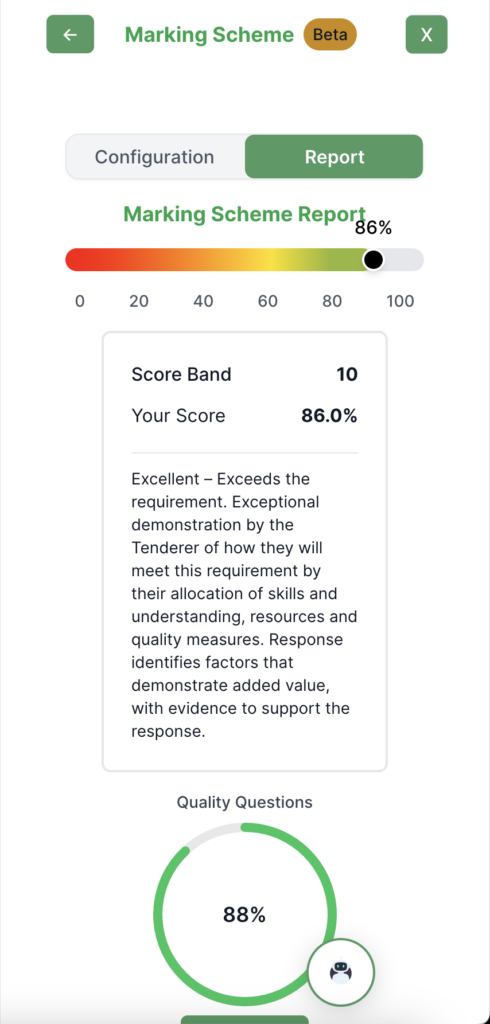
Shows: Overall score, category scores, criteria scores, improvement suggestions
Best Practices
Creating Marking Schemes
- Use real criteria when possible
- Be specific and measurable
- Set appropriate weightings
- Keep updated
When to Create Custom Rules
Create your own when: Client provides criteria, standard evaluation, organisation standards, specific requirements, known success patterns
Start with automatic when: No specific criteria, exploratory, quick start, learning
Hybrid Approach (Recommended):
- Start with automatic generation
- Review against client requirements
- Customise and refine
- Save for reuse
Creating Effective Rules
Guidelines:
- Match client language
- Be specific
- Make actionable
- Make measurable
- Set appropriate weightings based on client importance, historical patterns, and strategic importance
Example Good: “Does the answer demonstrate a clear project management methodology?” – specific, measurable, matches common criteria
Example Poor: “Is it good?” – vague, not measurable, doesn’t match criteria
Using Effectively
- Select early in development
- Review regularly
- Focus on low scores
- Track progress
Managing Multiple Schemes
- Name clearly
- Organise by type
- Reuse when possible
- Keep current
Understanding Scores
How Calculated
- Criteria scores: Individual per criterion
- Category scores: Average or weighted per category
- Overall score: Weighted average of all criteria
Interpretation
- High (80+): Strong performance
- Medium (50-79): Adequate but could improve
- Low (<50): Needs significant improvement
Using to Improve
- Identify weak areas
- Understand weightings
- Address gaps
- Track improvement
Troubleshooting
- Can’t create: Check required fields, verify categories/criteria, ensure permissions, try refresh
- Not saving: Check required fields, verify validity, check scoring scale, retry
- Can’t select: Ensure created, refresh dropdown, check access, contact admin if missing
- Reports not generating: Ensure selected, verify “Marking Scheme” checked, confirm enough content, wait for completion
- Generated scheme not suitable: Edit automatically generated, switch to manual, adjust as needed, save custom version

